> ## Documentation Index
> Fetch the complete documentation index at: https://docs.didit.me/llms.txt
> Use this file to discover all available pages before exploring further.
# Audit logs
> Track all API activity with searchable audit logs. Filter by user, method, status, and date range for compliance audits, security review, and debugging.
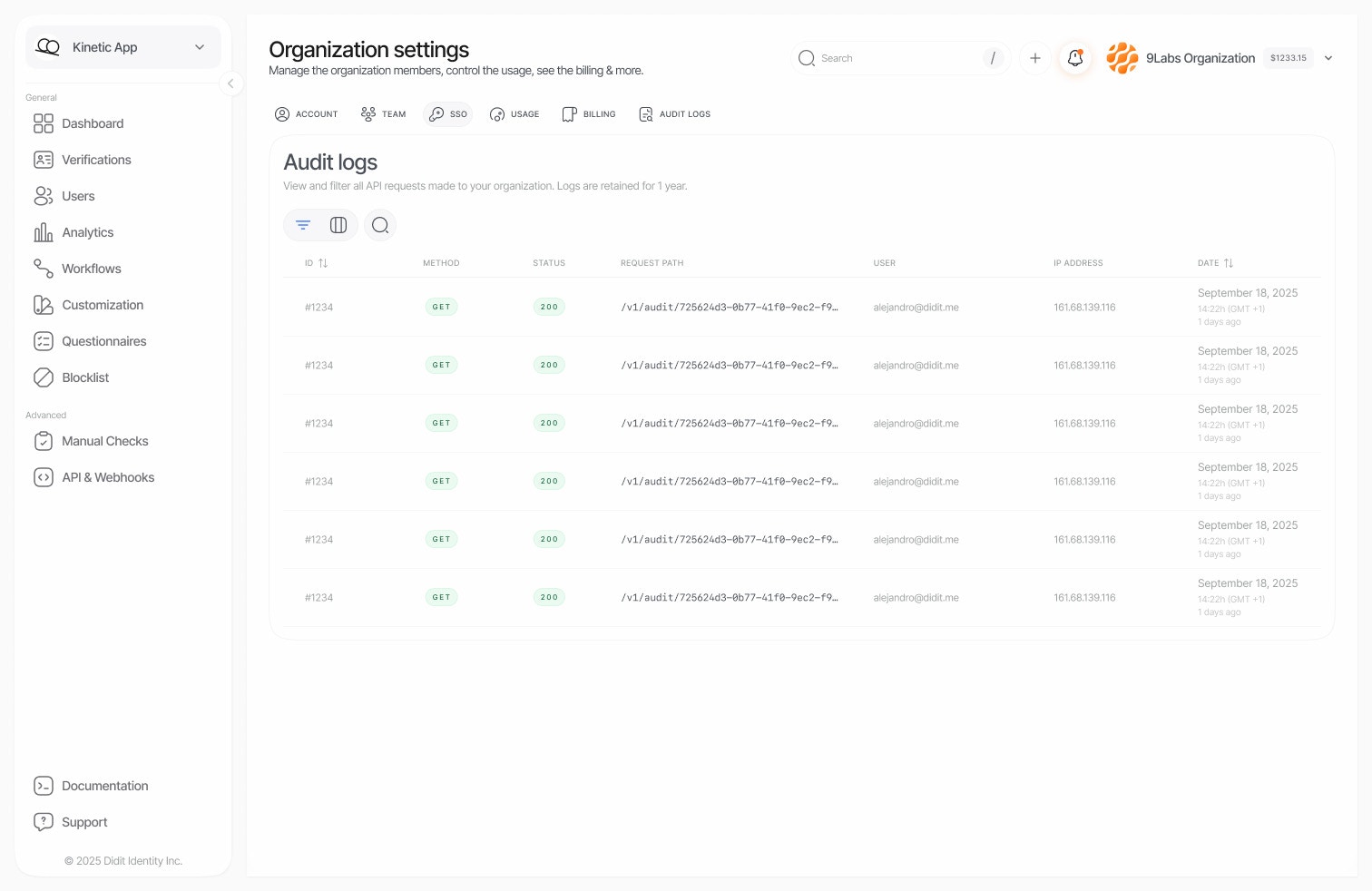
Audit Logs provide a comprehensive, searchable record of all API activity within your organization. Every request made to the Didit platform — whether from the Console, your integration, or team members — is automatically logged for security, compliance, and troubleshooting.
 ***
## Why audit logs?
| Challenge | Solution |
| ---------------------------------- | ------------------------------------------- |
| Regulatory compliance requirements | Complete 1-year audit trail of all activity |
| Security incident investigation | Trace exactly who did what and when |
| Debugging integration issues | See the exact requests and responses |
| Team accountability | Track which team members accessed what data |
| Usage monitoring | Understand API consumption patterns |
***
## Accessing audit logs
Navigate to **Audit Logs** in your Didit Console sidebar. The interface displays a chronological list of all API requests made within your organization.
Each log entry includes:
| Field | Description |
| --------------- | ----------------------------------------------------------------------------------------------------- |
| **Timestamp** | When the request was made |
| **User** | Email of the authenticated user (empty for API key requests, which are attributed to the application) |
| **Method** | HTTP method (GET, POST, PUT, DELETE) |
| **Path** | The API endpoint that was called |
| **Status** | HTTP response status code |
| **IP Address** | Origin IP of the request |
| **Application** | Which application the request was associated with |
***
## Filtering and search
The Audit Logs interface provides powerful filtering capabilities to help you find exactly what you're looking for.
### Smart search
The search bar automatically detects what you're looking for:
| Search type | Example | Behavior |
| ---------------- | -------------------------------- | --------------------------------------- |
| **Exact path** | `/v1/organization/.../sessions/` | Finds logs with this exact request path |
| **Exact email** | `admin@company.com` | Finds logs from this specific user |
| **Exact IP** | `192.168.1.100` | Finds logs from this IP address |
| **Wildcard** | `/v1/*/analytics/*` | Matches patterns with wildcards |
| **General text** | `sessions` | Fuzzy search across all fields |
### Available filters
| Filter | Description | Example |
| --------------- | ------------------------------ | ------------------------------ |
| **Application** | Filter by specific application | Select from dropdown |
| **Method** | Filter by HTTP method | `GET`, `POST`, `PUT`, `DELETE` |
| **Status Code** | Filter by response status | `200`, `401`, `500` |
| **Date Range** | Filter by time period | Last 7 days, custom range |
***
## Data retention
Audit logs are retained for **1 year (365 days)** to meet common compliance requirements:
| Timeframe | Availability |
| ----------------- | --------------------- |
| Last 24 hours | Available |
| Last 7 days | Available |
| Last 30 days | Available |
| Last 90 days | Available |
| Last 365 days | Available |
| Older than 1 year | Automatically deleted |
For extended retention requirements, contact our support team to discuss enterprise options.
***
## Security and privacy
### What's logged
Audit logs capture metadata about API requests:
* Request timestamp and duration
* User identity (email, user ID)
* Request path and query parameters
* Response status codes
* Client IP address and user agent
### What's NOT logged
To protect sensitive data, the following are automatically excluded:
* Request/response bodies
* Authentication tokens and credentials
* Passwords and secrets
* Personal data from verification sessions
### Access control
Audit log access is restricted to users with **Admin** or **Owner** roles in your organization. Regular team members cannot view audit logs unless explicitly granted elevated permissions.
***
## Common use cases
Demonstrate to auditors that you have complete visibility into who accessed verification data:
1. Filter by date range matching the audit period
2. Filter by specific applications or users if needed
3. Export or screenshot the results for documentation
If you suspect unauthorized access:
1. Search for the affected user's email or suspicious IP addresses
2. Filter by date range around the suspected incident
3. Look for unusual patterns: failed authentication attempts, unexpected endpoints, odd hours
When troubleshooting API integration issues:
1. Search for the specific endpoint path
2. Filter by `4xx` or `5xx` status codes to find errors
3. Note the timestamps to correlate with your application logs
Monitor how your team uses the platform:
1. Filter by specific team member emails
2. Review which sessions and features they accessed
3. Ensure team members are following proper procedures
***
## Best practices
1. **Regular reviews** — periodically review audit logs to catch anomalies early.
2. **Narrow your search** — use specific filters to reduce noise and find relevant entries faster.
3. **Date ranges** — always specify a date range for better performance on large datasets.
4. **Bookmark searches** — save common filter combinations as browser bookmarks for quick access.
***
## Why audit logs?
| Challenge | Solution |
| ---------------------------------- | ------------------------------------------- |
| Regulatory compliance requirements | Complete 1-year audit trail of all activity |
| Security incident investigation | Trace exactly who did what and when |
| Debugging integration issues | See the exact requests and responses |
| Team accountability | Track which team members accessed what data |
| Usage monitoring | Understand API consumption patterns |
***
## Accessing audit logs
Navigate to **Audit Logs** in your Didit Console sidebar. The interface displays a chronological list of all API requests made within your organization.
Each log entry includes:
| Field | Description |
| --------------- | ----------------------------------------------------------------------------------------------------- |
| **Timestamp** | When the request was made |
| **User** | Email of the authenticated user (empty for API key requests, which are attributed to the application) |
| **Method** | HTTP method (GET, POST, PUT, DELETE) |
| **Path** | The API endpoint that was called |
| **Status** | HTTP response status code |
| **IP Address** | Origin IP of the request |
| **Application** | Which application the request was associated with |
***
## Filtering and search
The Audit Logs interface provides powerful filtering capabilities to help you find exactly what you're looking for.
### Smart search
The search bar automatically detects what you're looking for:
| Search type | Example | Behavior |
| ---------------- | -------------------------------- | --------------------------------------- |
| **Exact path** | `/v1/organization/.../sessions/` | Finds logs with this exact request path |
| **Exact email** | `admin@company.com` | Finds logs from this specific user |
| **Exact IP** | `192.168.1.100` | Finds logs from this IP address |
| **Wildcard** | `/v1/*/analytics/*` | Matches patterns with wildcards |
| **General text** | `sessions` | Fuzzy search across all fields |
### Available filters
| Filter | Description | Example |
| --------------- | ------------------------------ | ------------------------------ |
| **Application** | Filter by specific application | Select from dropdown |
| **Method** | Filter by HTTP method | `GET`, `POST`, `PUT`, `DELETE` |
| **Status Code** | Filter by response status | `200`, `401`, `500` |
| **Date Range** | Filter by time period | Last 7 days, custom range |
***
## Data retention
Audit logs are retained for **1 year (365 days)** to meet common compliance requirements:
| Timeframe | Availability |
| ----------------- | --------------------- |
| Last 24 hours | Available |
| Last 7 days | Available |
| Last 30 days | Available |
| Last 90 days | Available |
| Last 365 days | Available |
| Older than 1 year | Automatically deleted |
For extended retention requirements, contact our support team to discuss enterprise options.
***
## Security and privacy
### What's logged
Audit logs capture metadata about API requests:
* Request timestamp and duration
* User identity (email, user ID)
* Request path and query parameters
* Response status codes
* Client IP address and user agent
### What's NOT logged
To protect sensitive data, the following are automatically excluded:
* Request/response bodies
* Authentication tokens and credentials
* Passwords and secrets
* Personal data from verification sessions
### Access control
Audit log access is restricted to users with **Admin** or **Owner** roles in your organization. Regular team members cannot view audit logs unless explicitly granted elevated permissions.
***
## Common use cases
Demonstrate to auditors that you have complete visibility into who accessed verification data:
1. Filter by date range matching the audit period
2. Filter by specific applications or users if needed
3. Export or screenshot the results for documentation
If you suspect unauthorized access:
1. Search for the affected user's email or suspicious IP addresses
2. Filter by date range around the suspected incident
3. Look for unusual patterns: failed authentication attempts, unexpected endpoints, odd hours
When troubleshooting API integration issues:
1. Search for the specific endpoint path
2. Filter by `4xx` or `5xx` status codes to find errors
3. Note the timestamps to correlate with your application logs
Monitor how your team uses the platform:
1. Filter by specific team member emails
2. Review which sessions and features they accessed
3. Ensure team members are following proper procedures
***
## Best practices
1. **Regular reviews** — periodically review audit logs to catch anomalies early.
2. **Narrow your search** — use specific filters to reduce noise and find relevant entries faster.
3. **Date ranges** — always specify a date range for better performance on large datasets.
4. **Bookmark searches** — save common filter combinations as browser bookmarks for quick access.