> ## Documentation Index
> Fetch the complete documentation index at: https://docs.didit.me/llms.txt
> Use this file to discover all available pages before exploring further.
# Shopify
> Add identity verification and age gating to your Shopify store with the Didit app. No-code setup, pay-per-call from $0.30, 500 free verifications/month.
Add Didit identity verification and age gating to your Shopify store in minutes. The **Didit Verify** Shopify app installs a theme block you can drop onto any page (account, checkout, custom landing pages) and creates verification sessions server-side — your API key stays inside the embedded app, never exposed to the storefront.
## Prerequisites
* A Shopify store (any plan)
* A [Didit Console](https://business.didit.me) account with at least one workflow
***
### Step 1: Install the app
1. Open the install link:
[https://admin.shopify.com/oauth/install?client\_id=091c43ccd91f610a1e647b0067e03ac1](https://admin.shopify.com/oauth/install?client_id=091c43ccd91f610a1e647b0067e03ac1)
2. Select your store (if you have multiple stores)
3. Click **Install** to add the app to your store
The app requests a single permission scope — `read_customers` — used to prefill and cross-check the logged-in customer's details when **Auto-send Customer Data** is enabled.
***
### Step 2: Configure Your Didit Credentials
After installation, you'll be redirected to the **Didit Verify Preferences** page. Here you'll connect the app to your Didit account.
#### Get Your API Key
1. Log in to the [Didit Business Console](https://business.didit.me)
2. Navigate to **API & Webhooks** in the left-hand sidebar
3. Copy your API key
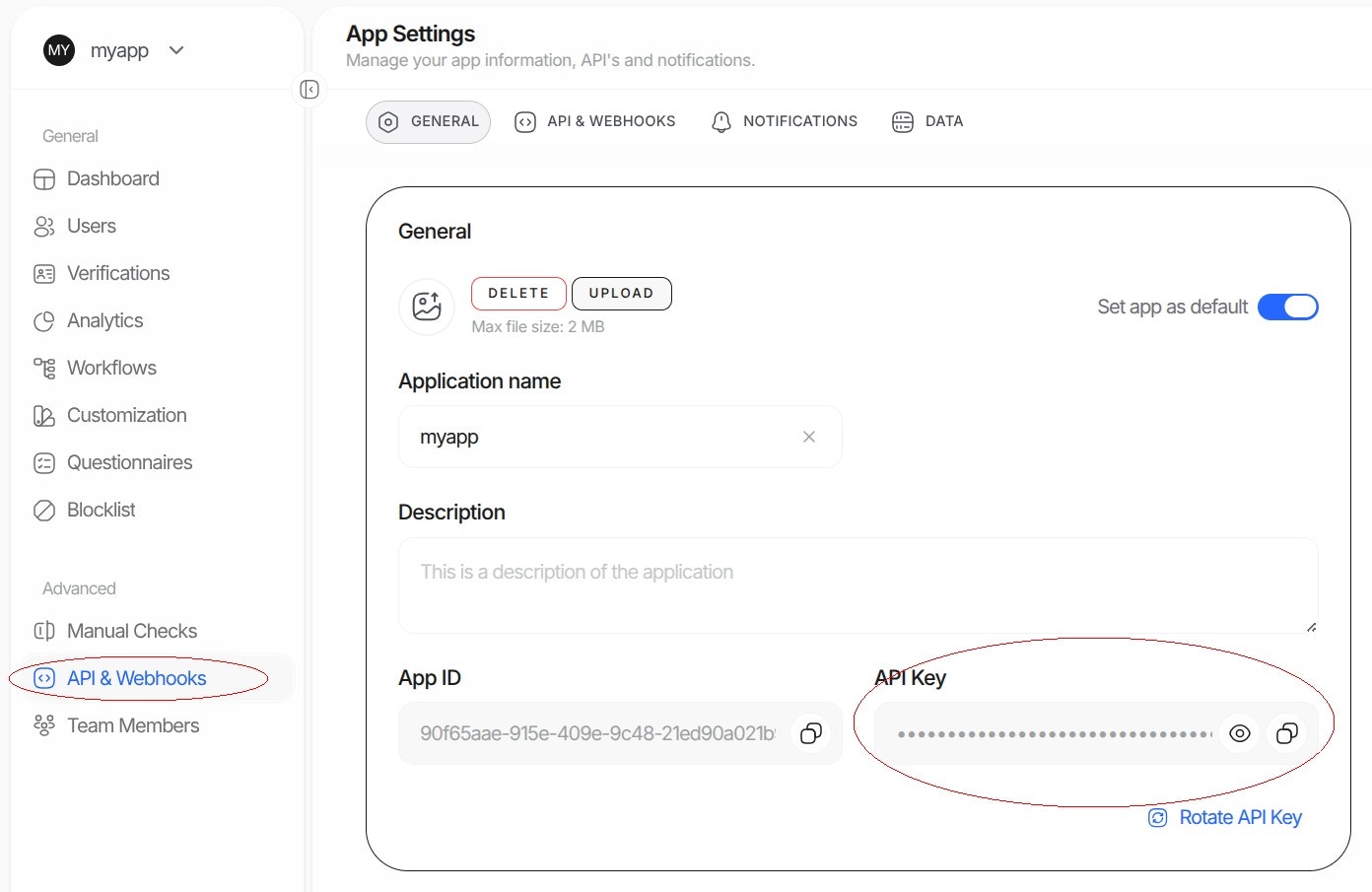 4. Paste the API key into the **Didit API Key** field in the Shopify preferences
#### Get Your Workflow ID
1. In the Didit Business Console, go to **Workflows**
2. Select the workflow you want to use (or create a new one)
3. Copy the **Workflow ID** (a UUID like `xxxxxxxx-xxxx-xxxx-xxxx-xxxxxxxxxxxx`)
4. Paste the API key into the **Didit API Key** field in the Shopify preferences
#### Get Your Workflow ID
1. In the Didit Business Console, go to **Workflows**
2. Select the workflow you want to use (or create a new one)
3. Copy the **Workflow ID** (a UUID like `xxxxxxxx-xxxx-xxxx-xxxx-xxxxxxxxxxxx`)
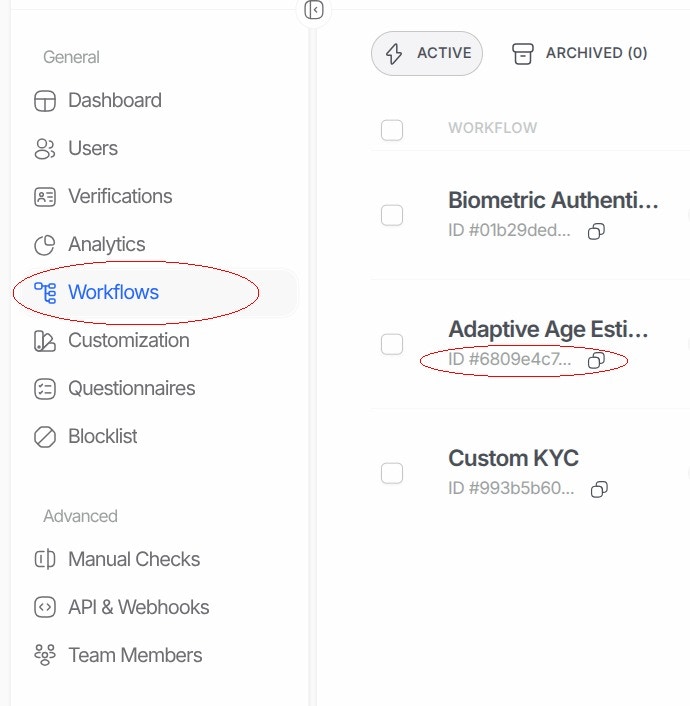 4. Paste the Workflow ID into the **Didit Workflow ID** field
#### Save Your Settings
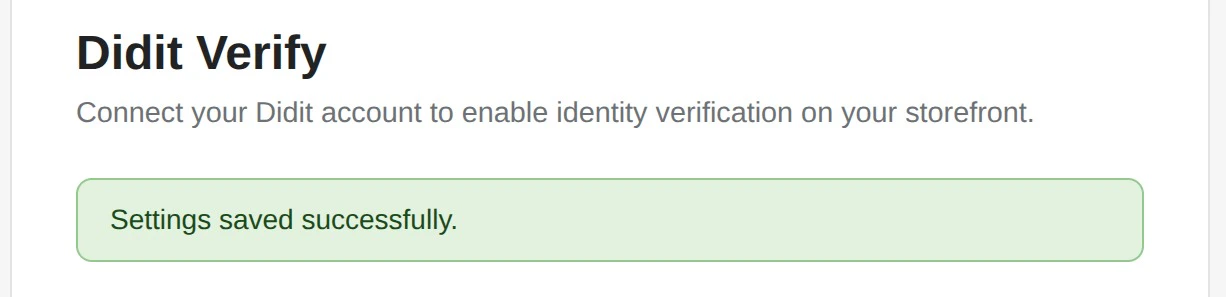
Click **Save Settings**. You should see a success message:
4. Paste the Workflow ID into the **Didit Workflow ID** field
#### Save Your Settings
Click **Save Settings**. You should see a success message:
 ***
### Step 3: Add the Verify Button to Your Theme
1. In your Shopify admin, go to **Online Store** → **Themes**
2. Click **Customize** on your active theme
3. Navigate to the page where you want the verification button (e.g., Account page, a custom page)
4. Click **Add section** or **Add block**
5. Go to the **Apps** tab
6. Select **Didit Verify**
The verification button will appear in your theme. You can drag it to reposition it within the section.
***
## Configuration Options
### Preferences Page Settings
These settings are configured in the app preferences (accessible from **Apps** → **Didit Verify** in your Shopify admin):
| Setting | Description |
| --------------------------- | -------------------------------------------------------------------------------------------------------------------------------------------------------------------------------------------------------------------------------------------------------- |
| **API Key** | Your Didit API key (required) |
| **Workflow ID** | The verification workflow to use (required) |
| **Vendor Data** | How sessions are linked to users in your Didit Console: **Customer ID** (sent as `shopify-`), **Customer Email**, **Shop + Customer ID** (sent as `-`), or **None**. Only applied when the customer is logged in. |
| **Callback URL** | Optional URL where users are redirected after verification. Didit appends `verificationSessionId` and `status` as query parameters. |
| **Callback Method** | Which device handles the redirect: **Default (initiator)**, **Initiator**, **Completer**, or **Both** |
| **Language** | Verification UI language (auto-detect or specific language) |
| **Require Customer Login** | If enabled, only logged-in customers can verify |
| **Auto-send Customer Data** | Prefill verification with the logged-in customer's name, email, phone, and country, and cross-check them against the verified document |
### Theme Block Settings
These settings are configured in the Shopify theme editor when you select the Didit Verify block:
#### Connection
| Setting | Description |
| --------------- | ---------------------------------------------------------------------------------------------------------------------------------- |
| **Mode** | **API Session** (recommended) — creates unique sessions per user. **UniLink** — uses a fixed verification URL (no backend needed). |
| **UniLink URL** | Only used in UniLink mode. Paste your UniLink URL from the Didit Console. |
#### Display
| Setting | Description |
| ---------------------------- | ------------------------------------------------------------------------------------------------------------- |
| **Display Mode** | **Modal** — opens verification in a popup overlay. **Embedded** — shows verification inline below the button. |
| **Show close button** | Show/hide the X button to close the verification modal |
| **Exit confirmation dialog** | Ask users to confirm before closing verification |
| **Auto-close on completion** | Automatically close the modal when verification completes |
| **Debug logging** | Enable browser console logs for troubleshooting |
#### Button Appearance
| Setting | Description |
| ---------------------- | ------------------------------------------------------------------------- |
| **Button text** | Text shown on the button (default: "Verify your Identity") |
| **Success text** | Text shown after successful verification (default: "Identity Verified ✓") |
| **Background color** | Button background color |
| **Text color** | Button text color |
| **Border radius** | Button corner roundness (0–50px) |
| **Vertical padding** | Top/bottom padding (0–40px) |
| **Horizontal padding** | Left/right padding (0–60px) |
| **Font size** | Button text size (10–32px) |
***
## Recommended Setup
For most stores, we recommend:
* **Mode:** API Session (creates unique verification sessions, better tracking)
* **Display Mode:** Modal (works everywhere, no layout issues)
* **Require Customer Login:** Enabled (links verification to customer accounts)
* **Auto-send Customer Data:** Enabled (prefills customer info, faster verification)
***
## Testing
1. Preview your theme or visit your store
2. Navigate to the page with the Didit Verify button
3. Click **Verify your Identity**
4. Complete the verification flow
5. Check your [Didit Business Console](https://business.didit.me) to see the verification result
Didit includes 500 free verifications per month — more than enough to test the full flow at no cost.
***
## Troubleshooting
### Button does nothing when clicked
* Make sure you've saved your API Key and Workflow ID in the preferences
* Check that the Workflow ID belongs to the same application as your API Key
* Enable **Debug logging** in the block settings and check the browser console for errors
### "Didit credentials not configured" error
* The app has no saved API Key or Workflow ID for this store. Open **Apps** → **Didit Verify**, fill in both fields, and click **Save Settings**
### "You must be logged in to verify your identity"
* **Require Customer Login** is enabled (the default). The customer needs to log in to their store account first — or disable the setting in the app preferences if you need guest verification
### Settings won't save
* "API key validation failed" — re-copy the API key from the Didit Business Console and make sure there are no extra spaces
* "This workflow does not belong to your application" — the Workflow ID belongs to a different Didit application than your API key; copy both from the same application
## Support (24/7)
Our team is available to help you get up and running.
Fastest response — reach us directly on WhatsApp.
Send us an email at [hello@didit.me](mailto:hello@didit.me).
***
### Step 3: Add the Verify Button to Your Theme
1. In your Shopify admin, go to **Online Store** → **Themes**
2. Click **Customize** on your active theme
3. Navigate to the page where you want the verification button (e.g., Account page, a custom page)
4. Click **Add section** or **Add block**
5. Go to the **Apps** tab
6. Select **Didit Verify**
The verification button will appear in your theme. You can drag it to reposition it within the section.
***
## Configuration Options
### Preferences Page Settings
These settings are configured in the app preferences (accessible from **Apps** → **Didit Verify** in your Shopify admin):
| Setting | Description |
| --------------------------- | -------------------------------------------------------------------------------------------------------------------------------------------------------------------------------------------------------------------------------------------------------- |
| **API Key** | Your Didit API key (required) |
| **Workflow ID** | The verification workflow to use (required) |
| **Vendor Data** | How sessions are linked to users in your Didit Console: **Customer ID** (sent as `shopify-`), **Customer Email**, **Shop + Customer ID** (sent as `-`), or **None**. Only applied when the customer is logged in. |
| **Callback URL** | Optional URL where users are redirected after verification. Didit appends `verificationSessionId` and `status` as query parameters. |
| **Callback Method** | Which device handles the redirect: **Default (initiator)**, **Initiator**, **Completer**, or **Both** |
| **Language** | Verification UI language (auto-detect or specific language) |
| **Require Customer Login** | If enabled, only logged-in customers can verify |
| **Auto-send Customer Data** | Prefill verification with the logged-in customer's name, email, phone, and country, and cross-check them against the verified document |
### Theme Block Settings
These settings are configured in the Shopify theme editor when you select the Didit Verify block:
#### Connection
| Setting | Description |
| --------------- | ---------------------------------------------------------------------------------------------------------------------------------- |
| **Mode** | **API Session** (recommended) — creates unique sessions per user. **UniLink** — uses a fixed verification URL (no backend needed). |
| **UniLink URL** | Only used in UniLink mode. Paste your UniLink URL from the Didit Console. |
#### Display
| Setting | Description |
| ---------------------------- | ------------------------------------------------------------------------------------------------------------- |
| **Display Mode** | **Modal** — opens verification in a popup overlay. **Embedded** — shows verification inline below the button. |
| **Show close button** | Show/hide the X button to close the verification modal |
| **Exit confirmation dialog** | Ask users to confirm before closing verification |
| **Auto-close on completion** | Automatically close the modal when verification completes |
| **Debug logging** | Enable browser console logs for troubleshooting |
#### Button Appearance
| Setting | Description |
| ---------------------- | ------------------------------------------------------------------------- |
| **Button text** | Text shown on the button (default: "Verify your Identity") |
| **Success text** | Text shown after successful verification (default: "Identity Verified ✓") |
| **Background color** | Button background color |
| **Text color** | Button text color |
| **Border radius** | Button corner roundness (0–50px) |
| **Vertical padding** | Top/bottom padding (0–40px) |
| **Horizontal padding** | Left/right padding (0–60px) |
| **Font size** | Button text size (10–32px) |
***
## Recommended Setup
For most stores, we recommend:
* **Mode:** API Session (creates unique verification sessions, better tracking)
* **Display Mode:** Modal (works everywhere, no layout issues)
* **Require Customer Login:** Enabled (links verification to customer accounts)
* **Auto-send Customer Data:** Enabled (prefills customer info, faster verification)
***
## Testing
1. Preview your theme or visit your store
2. Navigate to the page with the Didit Verify button
3. Click **Verify your Identity**
4. Complete the verification flow
5. Check your [Didit Business Console](https://business.didit.me) to see the verification result
Didit includes 500 free verifications per month — more than enough to test the full flow at no cost.
***
## Troubleshooting
### Button does nothing when clicked
* Make sure you've saved your API Key and Workflow ID in the preferences
* Check that the Workflow ID belongs to the same application as your API Key
* Enable **Debug logging** in the block settings and check the browser console for errors
### "Didit credentials not configured" error
* The app has no saved API Key or Workflow ID for this store. Open **Apps** → **Didit Verify**, fill in both fields, and click **Save Settings**
### "You must be logged in to verify your identity"
* **Require Customer Login** is enabled (the default). The customer needs to log in to their store account first — or disable the setting in the app preferences if you need guest verification
### Settings won't save
* "API key validation failed" — re-copy the API key from the Didit Business Console and make sure there are no extra spaces
* "This workflow does not belong to your application" — the Workflow ID belongs to a different Didit application than your API key; copy both from the same application
## Support (24/7)
Our team is available to help you get up and running.
Fastest response — reach us directly on WhatsApp.
Send us an email at [hello@didit.me](mailto:hello@didit.me).