

 Get Started
 Integrate / SDKs
 User Verification
 Business Verification
 Transaction Monitoring
 Changelog
Prerequisites
- A Shopify store (any plan)
- A Didit Console account with at least one workflow
Step 1: Install the app
- Open the install link: https://admin.shopify.com/oauth/install?client_id=cafa0d15227fb59bd47470b23eae7469
- Select your store (if you have multiple stores)
- Click Install to add the app to your store
The app requests a single permission scope -
read_customers - used to prefill and cross-check details only when Allow customer-approved prefill is enabled and the logged-in customer selects the optional sharing checkbox.Step 2: Configure Your Didit Credentials
After installation, Didit Verify opens inside Shopify admin. Use Settings to connect the app to your Didit account.Get Your API Key
- Log in to the Didit Business Console
- Navigate to API & Webhooks in the left-hand sidebar
- Copy your API key
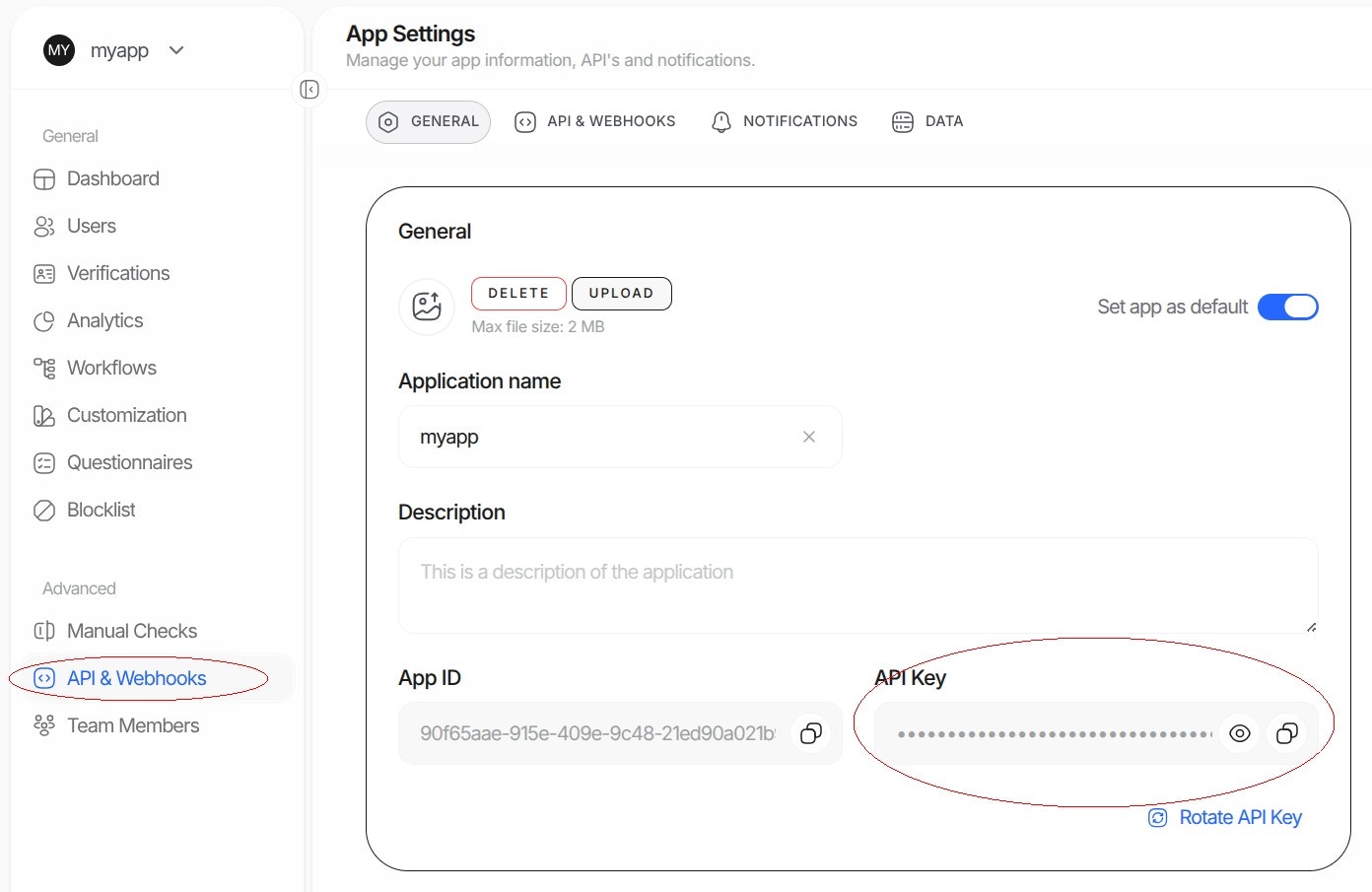
- Paste the API key into the Didit API Key field in the Shopify preferences
Get Your Workflow ID
- In the Didit Business Console, go to Workflows
- Select the workflow you want to use (or create a new one)
- Copy the Workflow ID (a UUID like
xxxxxxxx-xxxx-xxxx-xxxx-xxxxxxxxxxxx)
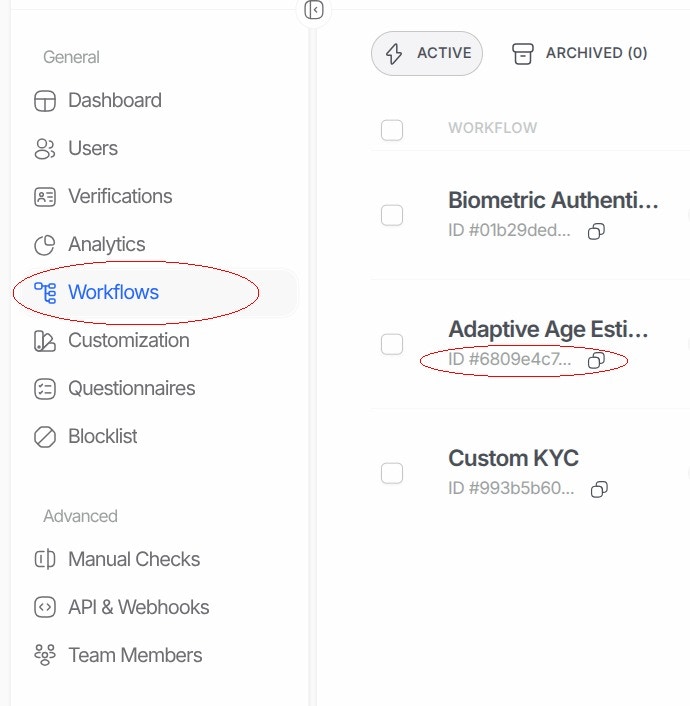
- Paste the Workflow ID into the Didit Workflow ID field
Save Your Settings
Choose a retention period under Data retention before saving. The period applies to existing and future store verifications, so choose the duration your store needs. Click Save Settings. You should see a success message: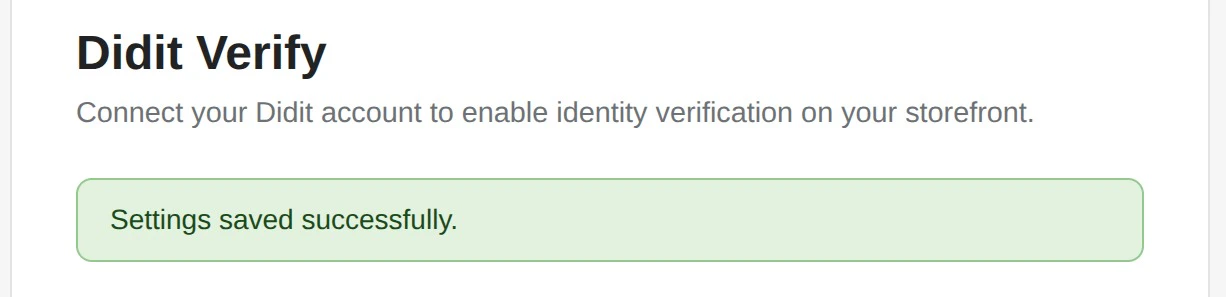
Step 3: Add the Verify Button to Your Theme
- In your Shopify admin, go to Online Store → Themes
- Click Customize on your active theme
- Navigate to the page where you want the verification button (e.g., Account page, a custom page)
- Click Add section or Add block
- Go to the Apps tab
- Select Didit Verify
Accessing verification data
Shopify’s app review (requirement 5.1.5) requires that data collected through a Shopify-hosted flow be accessible to the merchant within the Shopify admin or app context - not only on an external dashboard. The Didit Verify app satisfies this out of the box: no backend, webhook receiver, or custom UI is required.The Verifications tab (default, no-code)
Open Apps → Didit Verify → Verifications in your Shopify admin to see every verification session collected through your storefront - status, customer, country, and timestamp - scoped to your shop. Select a session to view its decision overview, identity fields, individual verification checks, warnings, and available evidence. You can move between Settings, Verifications, Privacy, and Human review without leaving Shopify admin. Saving settings keeps these tabs available.The Verifications tab only loads data when you open the app from your Shopify admin. If you see a message asking you to reopen the page, navigate back to Apps → Didit Verify from the Shopify admin sidebar.
business.didit.me) is a separate admin surface for configuration (API keys, workflows, webhook destinations).
Do not instruct merchants to use it to view verification data collected through Shopify - that does not satisfy Shopify’s data-access requirement.
The Console is only needed for initial setup and credential retrieval.
For merchants running their own backend (optional)
If you have your own backend and want a copy of the verification data there - for example to trigger fulfillment logic - Didit also delivers results via webhook and on-demand API, in addition to the Verifications tab above.1
Verification session created
The Shopify app creates a session server-side using your Didit API key. The customer completes the verification flow in the theme block (modal or embedded).
2
Result delivered via webhook
When the session reaches a terminal status, Didit sends a signed
status.updated webhook to the destination you configured in the Didit Business Console under API & Webhooks.
The webhook body includes the full decision object - the same schema returned by GET /v3/session/{id}/decision/ - for Approved, Declined, In Review, and Abandoned statuses.
Other terminal statuses (e.g. Expired, Kyc Expired) deliver the status change without a decision payload; call the API to inspect the session state.3
Retrieve on demand (optional)
Your backend can also call
GET /v3/session/{sessionId}/decision/ at any time to fetch the full decision payload (identity fields, liveness, AML, face match, etc.).Configuring webhooks for Shopify
- In the Didit Business Console, navigate to API & Webhooks → Webhooks
- Create a webhook destination pointing to your backend endpoint (HTTPS, publicly reachable)
- Subscribe to at least
status.updatedanddata.updatedevents - Store the returned
secret_shared_keyto verify HMAC-SHA256 signatures on incoming webhooks
Retrieving a session decision via API
session_kind, status, and all feature arrays (id_verifications, liveness_checks, face_matches, aml_screenings, etc.). See Retrieve Session for the full response schema and field reference.
Configuration Options
Preferences Page Settings
These settings are configured in the app preferences (accessible from Apps → Didit Verify in your Shopify admin):Customer privacy choices
The storefront block offers an optional checkbox to share account details for prefill and identity checks. Leaving it unchecked allows the customer to enter details themselves. Under Verification choices, a signed-in customer can request human review or withdraw consent and request deletion of their verification data. Human review pauses automated verification and adds a request to Apps → Didit Verify → Human review. Contact the customer and arrange an appropriate alternative before completing that request. Completing a human-review request does not approve a verification or a purchase. Withdrawal immediately stops the existing verification link and prevents new verifications while deletion is processing. The storefront confirms receipt of the request; it does not claim that deletion has already finished.Fulfil privacy requests
Open Apps → Didit Verify → Privacy to track customer exports and deletion requests received from Shopify or the storefront.- Customer export: Download the prepared ZIP, provide it through your secure customer-support process, then select I have delivered this export.
- Customer deletion: The request stays in progress until the customer’s store-associated verification records, uploaded files, and human-review requests have been deleted.
- Needs attention: Follow the request’s instructions to resolve a missing customer ID or contact Didit support when a profile includes data from another store or purpose.
Theme Block Settings
These settings are configured in the Shopify theme editor when you select the Didit Verify block:Connection
Display
Button Appearance
Recommended Setup
For most stores, we recommend:- Mode: App workflow (uses the workflow saved in the app settings)
- Display Mode: Modal (works everywhere, no layout issues)
- Require Customer Login: Enabled (links verification to customer accounts)
- Allow customer-approved prefill: Enabled (customers choose whether to share their store details)
Testing
- Preview your theme or visit your store
- Navigate to the page with the Didit Verify button
- Click Verify your Identity
- Complete the verification flow
- Check your backend for the webhook delivery, or call GET /v3/session//decision/ to retrieve the verification result
Didit includes 500 free verifications per month - more than enough to test the full flow at no cost.
Troubleshooting
Button does nothing when clicked
- Make sure you’ve saved your API Key and Workflow ID in the preferences
- Check that the Workflow ID belongs to the same application as your API Key
- Enable Debug logging in the block settings and check the browser console for errors
”Didit credentials not configured” error
- The app has no saved API Key or Workflow ID for this store. Open Apps → Didit Verify, fill in both fields, and click Save Settings
”You must be logged in to verify your identity”
- Require Customer Login is enabled (the default). The customer needs to log in to their store account first - or disable the setting in the app preferences if you need guest verification
Settings won’t save
- “API key validation failed” - re-copy the API key from the Didit Business Console and make sure there are no extra spaces
- “This workflow does not belong to your application” - the Workflow ID belongs to a different Didit application than your API key; copy both from the same application
Support (24/7)
Our team is available to help you get up and running.WhatsApp Support
Fastest response - reach us directly on WhatsApp.
Send us an email at hello@didit.me.