

 Get Started
 Integrate / SDKs
 User Verification
 Business Verification
 Transaction Monitoring
 Changelog
Prerequisites
- A Salesforce org (Enterprise edition or higher; Developer Edition for testing)
- A Didit Console account with a configured workflow
- Permission to install managed packages and create Sites in Setup
Step 1: Install the app
The link below installs the released DiditVerifyManaged 1.0.0.2 package. Package installation is separate from marketplace listing approval.- Open the install link: https://login.salesforce.com/packaging/installPackage.apexp?p0=04td10000004M0LAAU
- Select Install for Admins Only while configuring and testing the integration. Grant access to the intended users after validating your configuration.
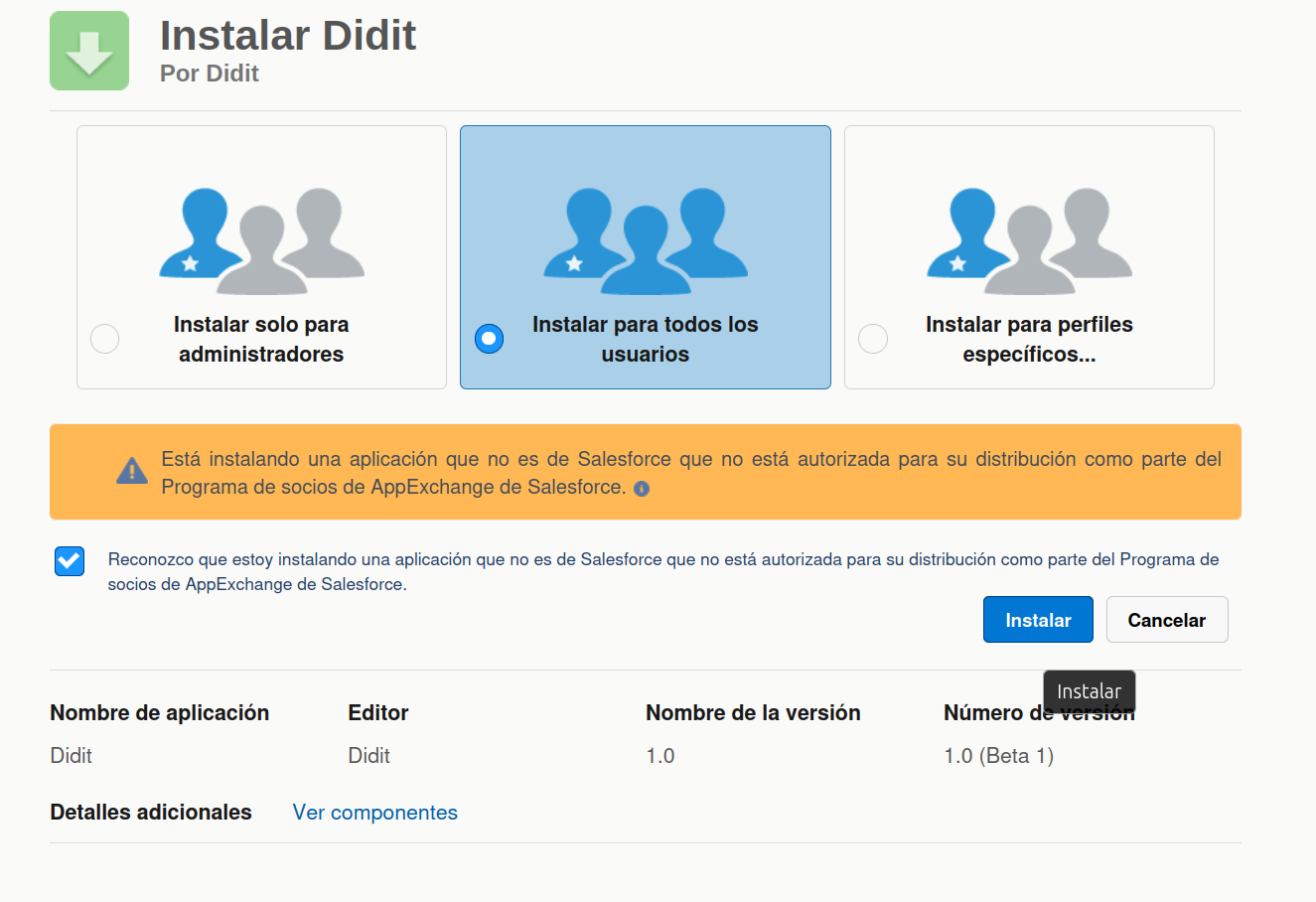
- Click Install
Step 2: Get Your Didit Credentials
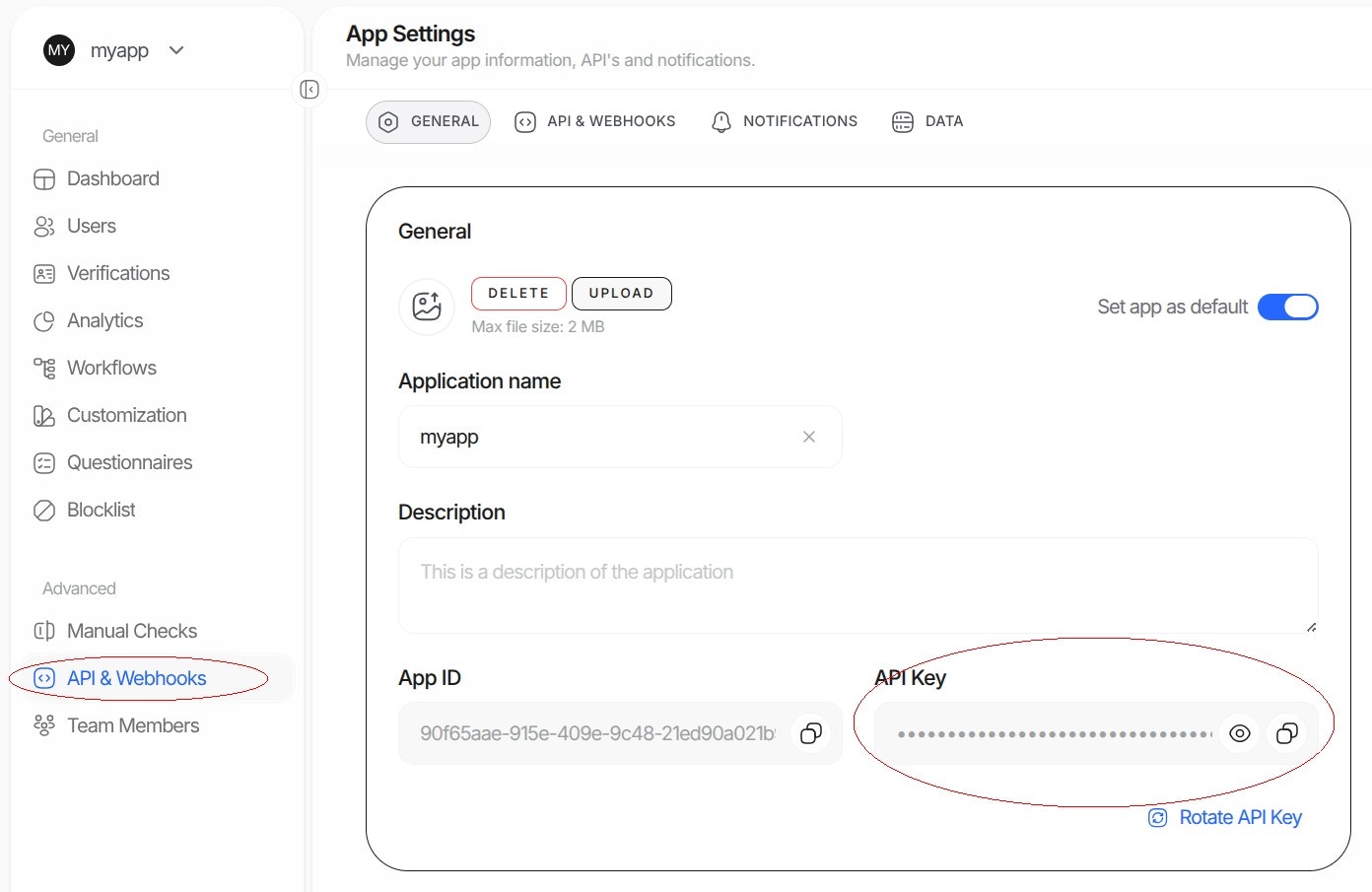
Get Your API Key (for API mode)
- Log in to the Didit Business Console
- Navigate to API & Webhooks in the left-hand sidebar
- Copy your API key
Get Your Workflow ID
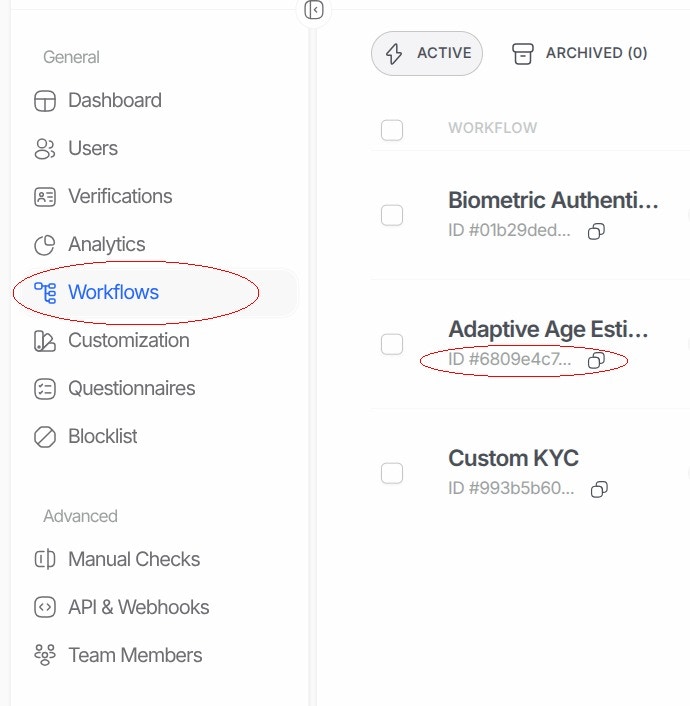
- In the Didit Business Console, go to Workflows
- Select the workflow you want to use (or create a new one)
- Copy the Workflow ID (a UUID like
xxxxxxxx-xxxx-xxxx-xxxx-xxxxxxxxxxxx)
Step 3: Configure Didit Settings
- Click the App Launcher (grid icon, top-left) and search for “Didit”
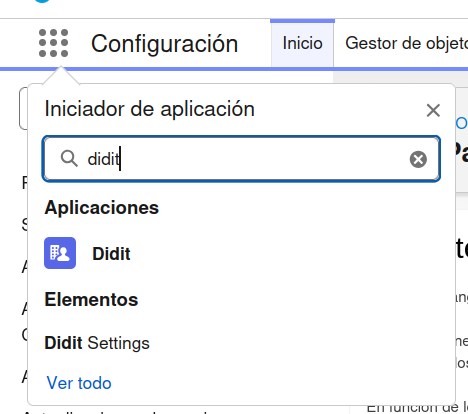
- Open the Didit app — you’ll land on the Didit Settings tab
- Fill in your credentials and preferences:
- Click Save Settings
Step 4: Add the Component to Record Pages
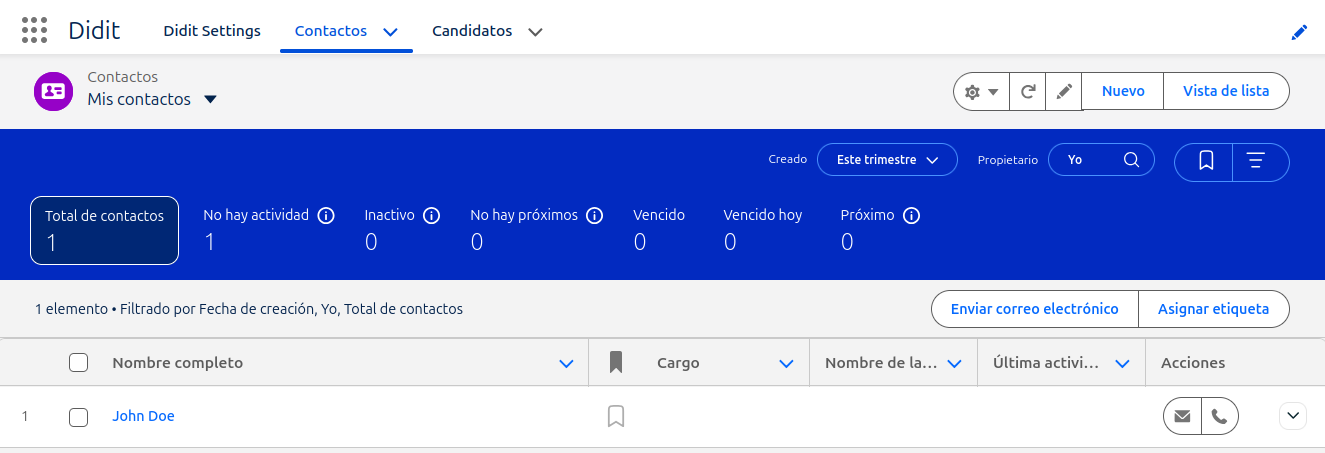
- Navigate to a Contact or Lead record
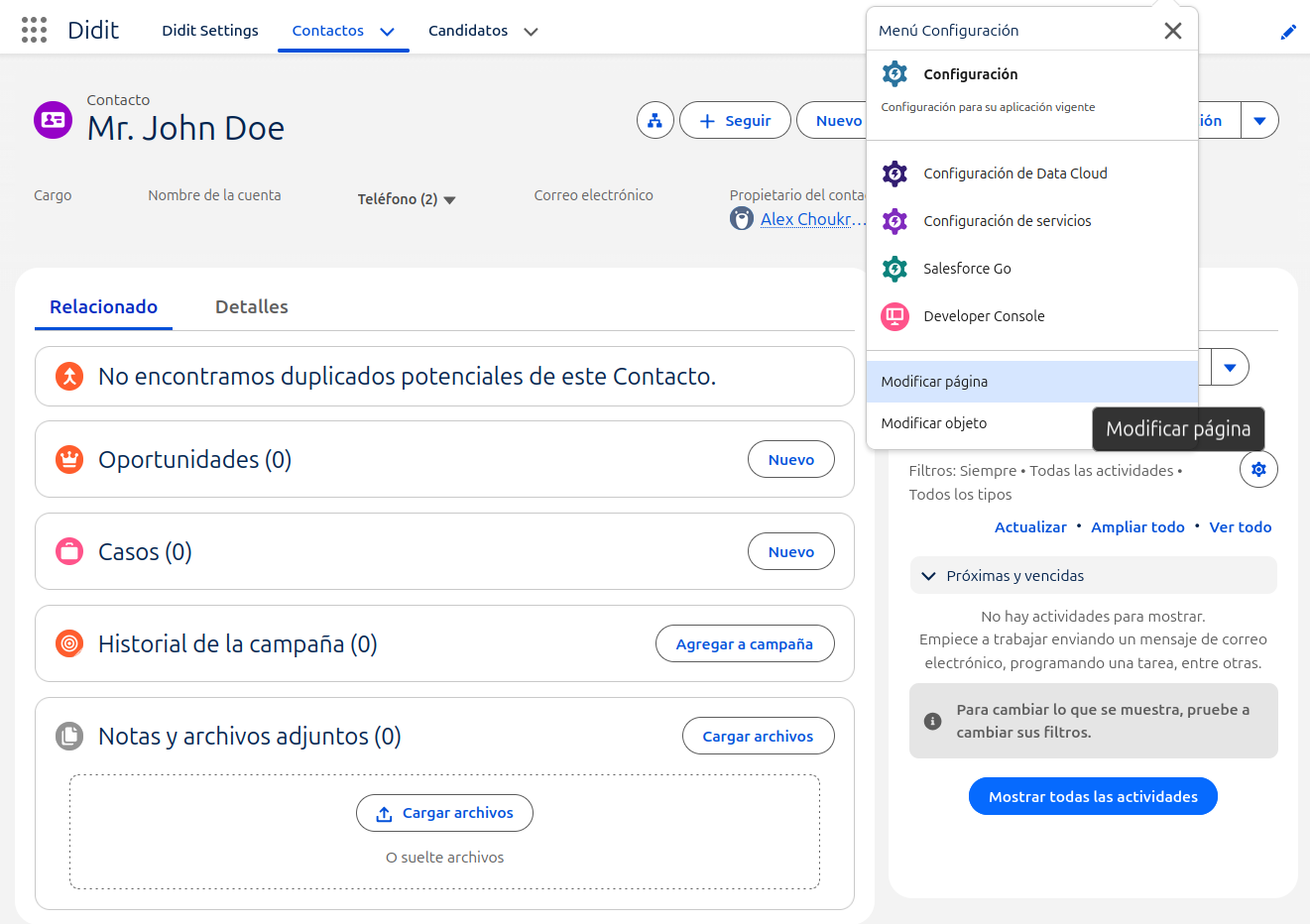
- Click the gear icon → Edit Page (or Setup → Object Manager → Contact/Lead → Lightning Record Pages)
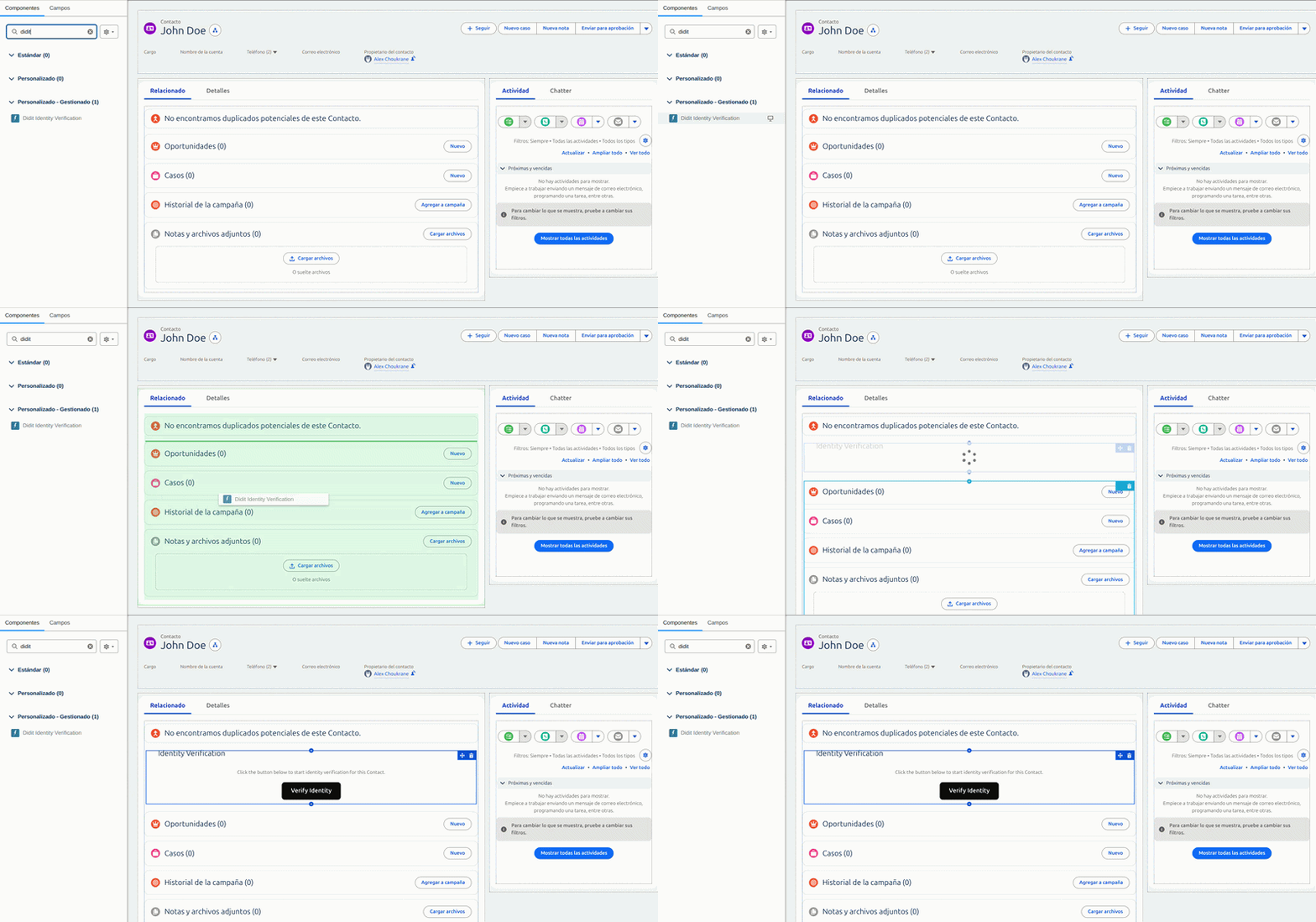
- In Lightning App Builder, drag Didit Identity Verification from the Components panel
- Click Save and Activate the page, select “Assign as Org Default” when activating, check the video:
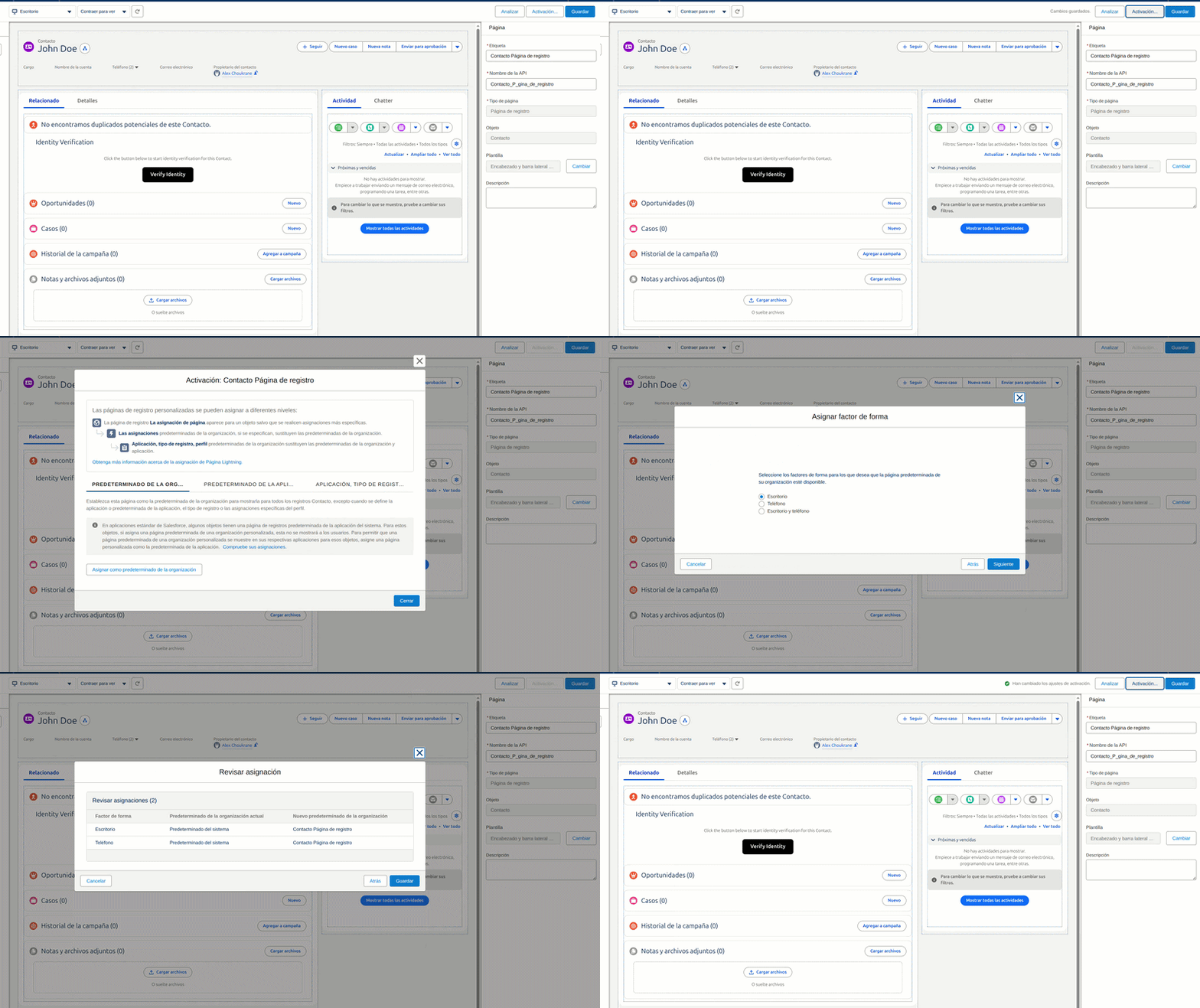
- The example above uses a Contact record page — the steps are identical for Lead record pages.
How It Works
API Mode (Recommended)
- User clicks Verify Identity on a Contact/Lead record
- Apex creates a session via the Didit API (API key stays server-side)
- The Didit SDK opens the verification flow — as a modal overlay or inline embedded view depending on your Display Mode setting
- On completion, the record is updated automatically:
Verification Status→ the session result (Approved,Declined,In Review, etc.)Identity Verified→trueon Approved;falseon DeclinedVerified Attimestamp andDidit Session IDVerified Document Type,Document Expiry Date,AML Check Status(populated via webhook — see below)
- The component shows the verified status, document type, expiry date, and AML result inline — no page layout configuration needed
UniLink Mode
- User clicks Verify Identity
- A fixed UniLink URL opens in modal or iframe (no API call needed)
- On completion, result is saved to the record
Automatic Verification Updates (Webhooks)
When a verification session completes (whether the agent is watching the page or not), Didit sends a webhook to your Salesforce org to automatically update the Contact/Lead record. This requires a one-time Salesforce Site setup.Why is this needed?
Salesforce does not accept incoming HTTP requests from external services without a public endpoint. A Salesforce Site creates this endpoint so Didit can push verification results directly to your org in real-time.Step 1: Go to Setup > Sites
In Salesforce, click the gear icon > Setup. In the Quick Find box, type Sites and click on it under Sites and Domains.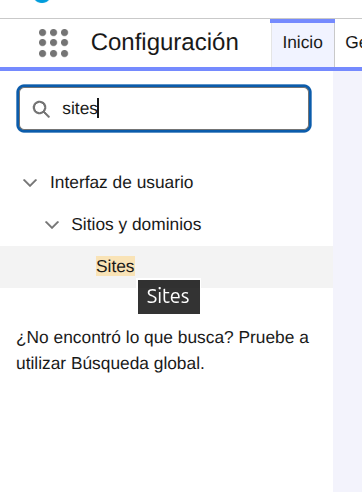
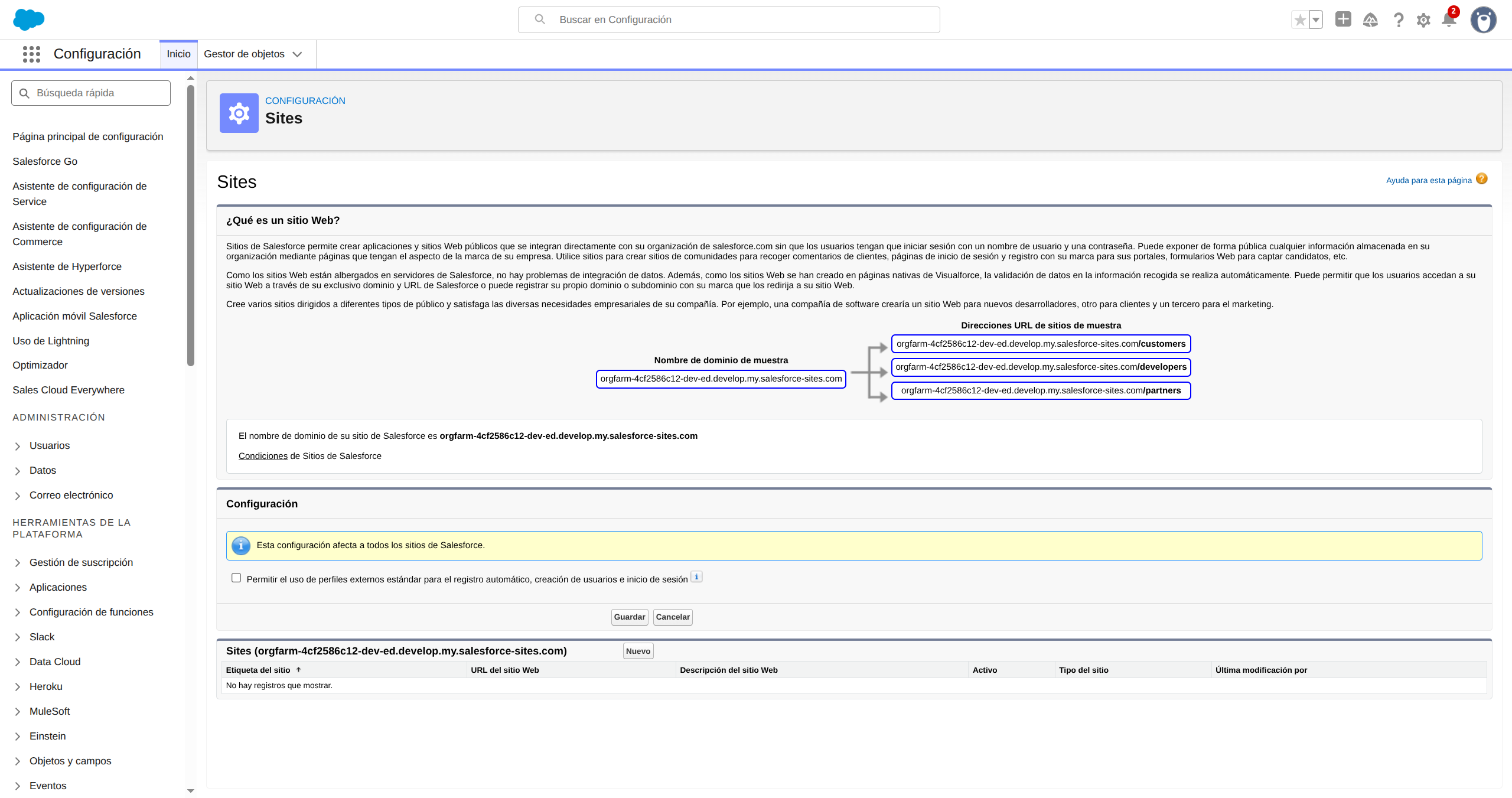
Step 2: Create a new Site
Click the New button in the Sites list. Fill in:- Site Label:
DiditWebhook - Site Name: auto-fills as
DiditWebhook - Default Web Address:
didit - Active: checked
- Active Site Home Page:
InMaintenance
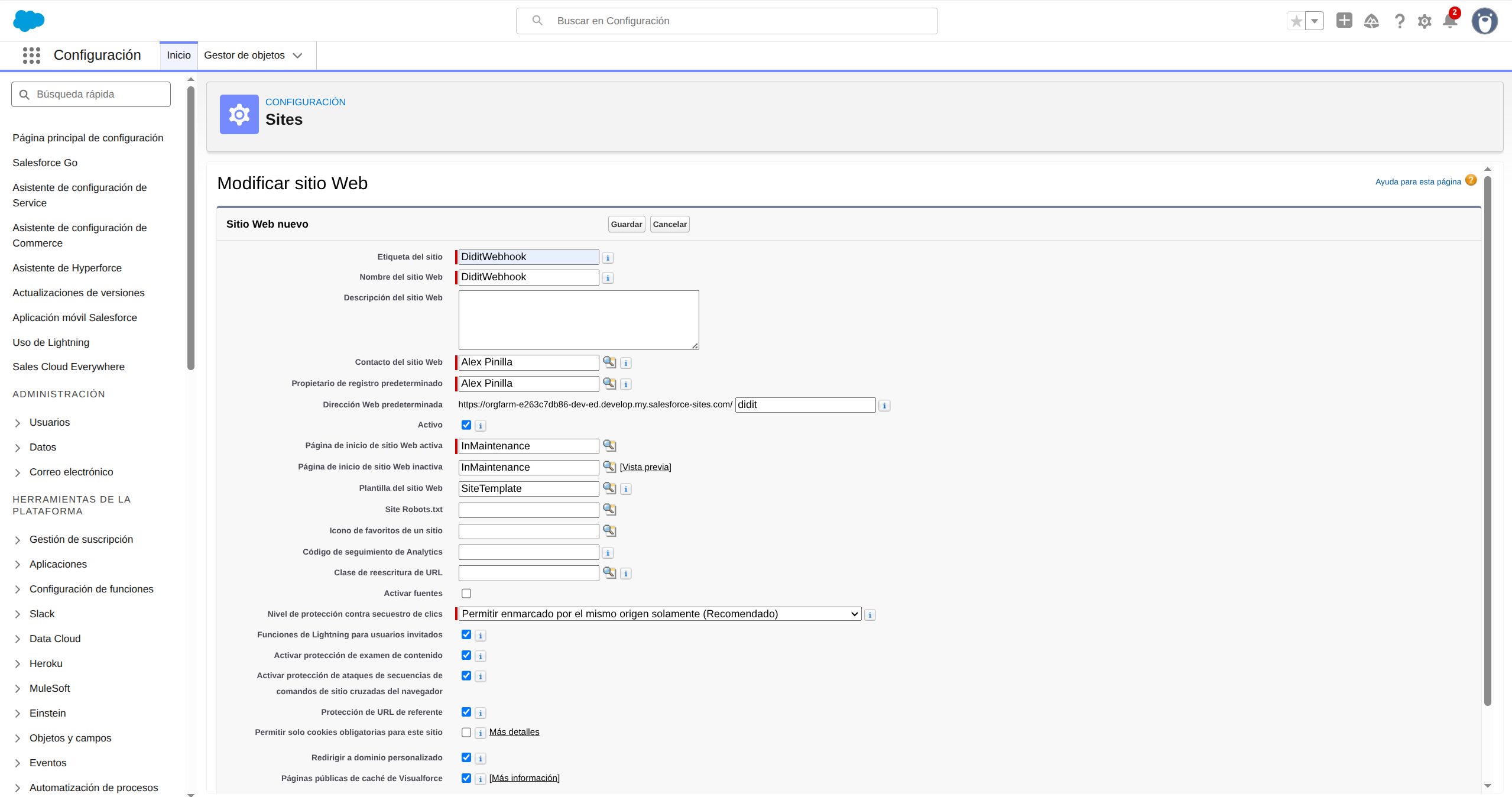
Step 3: Verify the Site was created
After saving, you’ll see the Site detail page. Note the Site URL — it will look likehttps://your-org.develop.my.salesforce-sites.com/didit. You’ll need this later.
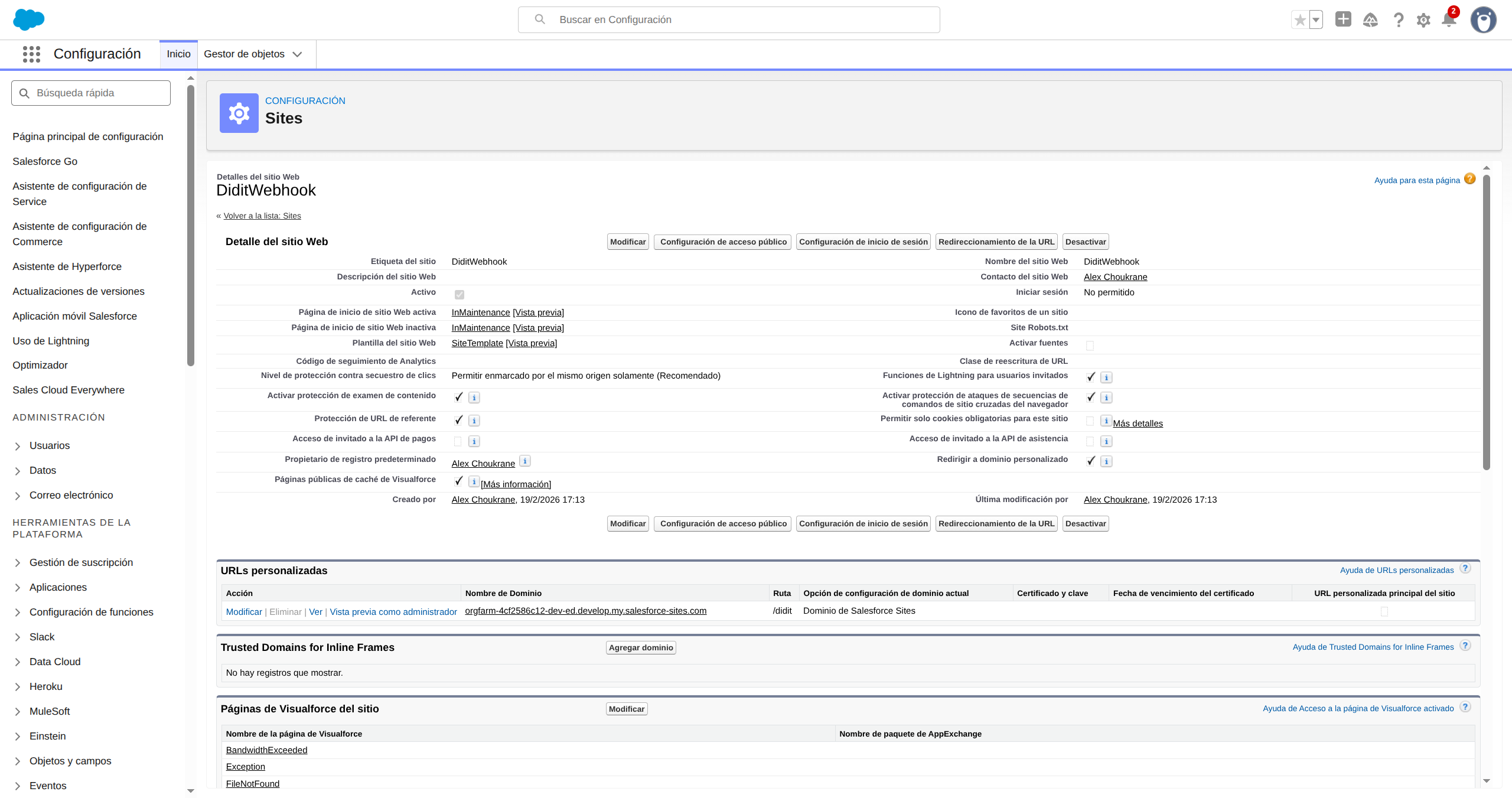
Step 4: Grant Guest User access to the webhook class
On the Site detail page, click Public Access Settings. This opens the Guest User profile. Scroll down to Enabled Apex Class Access and click Edit. Select DiditWebhookReceiver from the Available list and click Add to move it to the Enabled list. Click Save.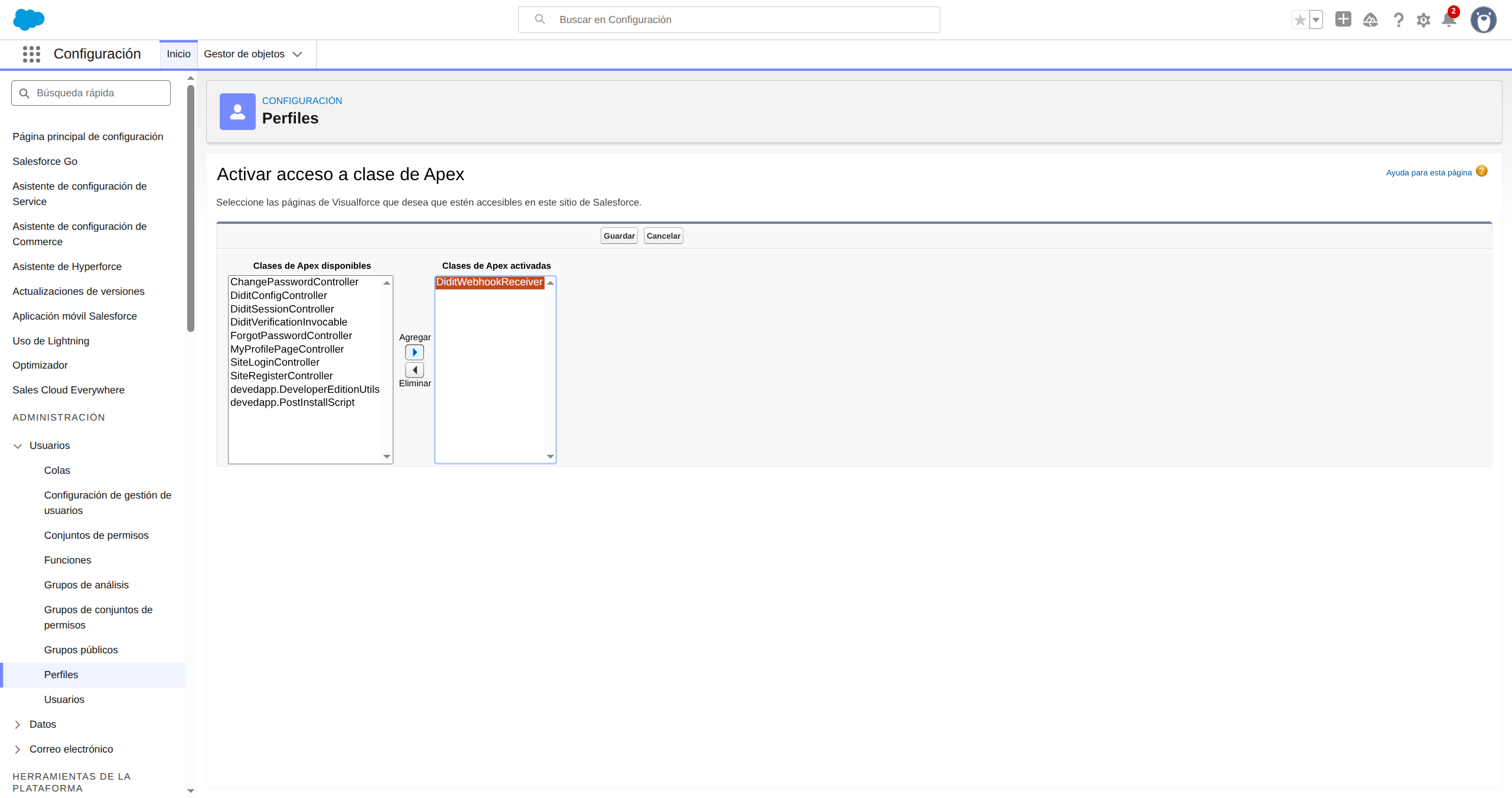
Step 5: Configure the webhook in Didit Console
- Go to business.didit.me > API & Webhooks
- Set your Webhook URL to:
https://your-org.develop.my.salesforce-sites.com/didit/services/apexrest/didit/webhook/
Note: The exact domain format depends on your org type. Developer Edition orgs include.developin the URL. Production orgs usehttps://your-org.my.salesforce-sites.com/didit/services/apexrest/didit/webhook/. Always copy the URL from your Site detail page (Step 3) to be sure.
- Copy the Webhook Secret Key
- In Salesforce, go to Didit Settings and paste the secret into the Webhook Secret field
- Click Save Settings
What the webhook saves
When Didit sends a webhook, the Contact or Lead is updated automatically. Always updated — regardless of workflow type:
Only updated when the feature is part of your workflow:
If a feature is not enabled in your Didit workflow, the corresponding fields are simply left blank — nothing breaks.
A Didit Verification child record (
Didit_Verification__c) is also created for every session, giving you a full audit trail with additional detail (document number, issuing country, name on document, date of birth, face match score, liveness score, AML hit count) — again, only for the features included in the workflow.
You can add the Didit Verifications related list to your Contact/Lead page layout to view history.
Flow Automation (Invocable Action)
The plugin includes an Invocable Apex action that Salesforce Flows can call to trigger verification automatically:- In Flow Builder, add an Action element
- Search for “Create Didit Verification Session”
- Pass a Contact or Lead record ID
- The action returns
url,sessionId,success, anderror - Use the URL in a Send Email or Send Notification action to deliver it to the customer
- On Lead creation — automatically send a verification link to every new lead
- Document expiry monitoring — build a Scheduled Flow that runs daily, finds all Contacts where
Document Expiry Date ≤ TODAY + 90 days, and sends a re-verification link — this works out of the box using theDocument Expiry Datefield populated by the webhook
Troubleshooting
Button does nothing when clicked
- Make sure you’ve saved your API Key and Workflow ID in Didit Settings
- Check that the Workflow ID belongs to the same application as your API Key
- Enable Debug Logging in Didit Settings and check the browser console for errors
”Received a non-JSON response from the Didit API”
- Verify the Remote Site Setting for
https://verification.didit.meis active: Setup → Remote Site Settings - Check that your API Key is valid and has not expired in the Didit Business Console
Webhook returns 401 — “Webhook secret not configured”
- Go to Didit Settings and paste your Webhook Secret Key (copied from Didit Console → API & Webhooks) into the Webhook Secret field, then click Save Settings
Webhook returns 401 — “Invalid signature” or “Request timestamp is stale”
- Invalid signature: make sure the Webhook Secret in Didit Settings exactly matches the one in the Didit Console — no extra spaces or characters
- Stale timestamp: webhooks must arrive within 5 minutes of being sent. If your Salesforce org’s clock is out of sync this can trigger false positives, but this is very rare
Verification window does not open (CSP error in browser console)
- The CSP Trusted Site for
https://verify.didit.meis included in the managed package and is deployed automatically. If you are deploying from source, make surecspTrustedSites/Didit_Verify_Frontend.cspTrustedSite-meta.xmlis included in your deployment
Support (24/7)
Our team is available to help you get up and running.WhatsApp Support
Fastest response — reach us directly on WhatsApp.
Send us an email at hello@didit.me.