

 Get Started
 Integrate / SDKs
 User Verification
 Business Verification
 Transaction Monitoring
 Authentication
 Changelog
auth.example.com.
Manage it in the console under Authentication > Branding and emails, which shows a live preview of the hosted sign-in page in light and dark.
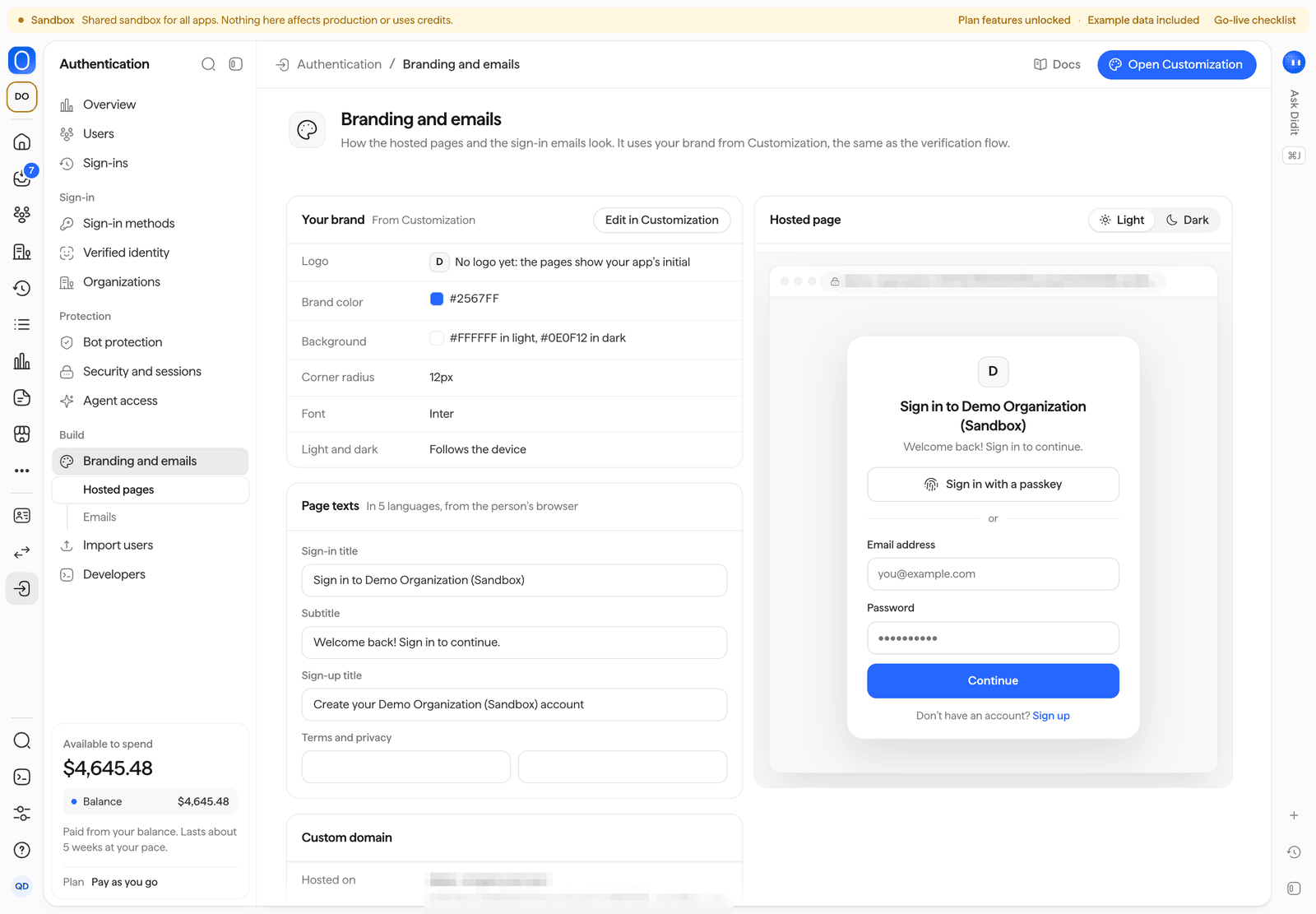
Authentication > Branding and emails, with a preview of the hosted page.
Your brand
The logo, brand color, background, corner radius and font come from your application’s Customization settings in the console, and the hosted pages and emails follow them. Choose Edit in Customization to change them: one change updates the verification flow and the sign-in pages together.- The pages follow the person’s device in light or dark mode, and the brand color is adapted for dark backgrounds.
- The pages show your application’s name.
- On the Free plan, the hosted pages show a Secured by Didit badge.
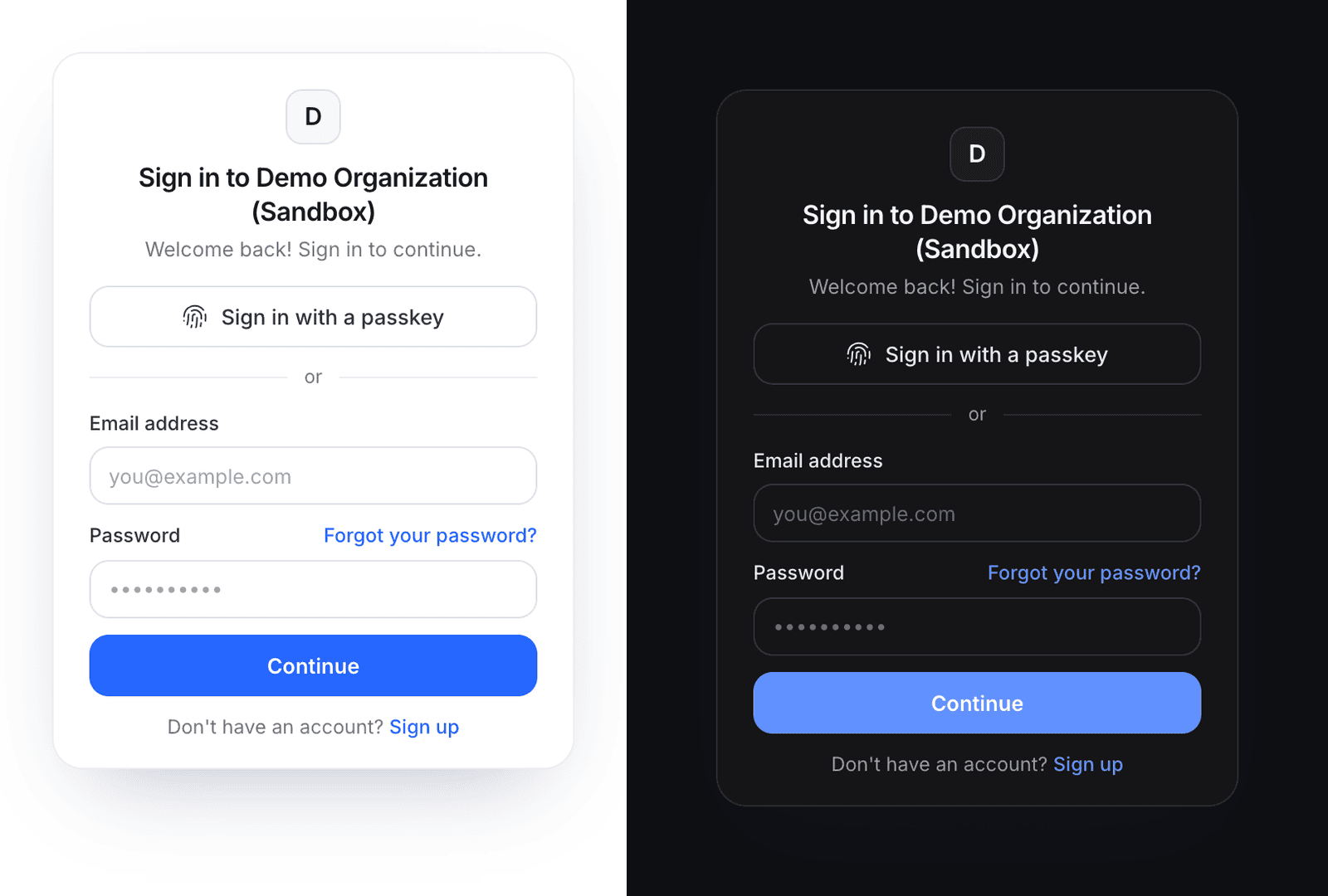
The hosted sign-in page follows the person's device in light or dark mode.
Page texts and legal links
The hosted pages are translated into English, Spanish, French, German and Japanese, and pick the language from the person’s browser, or from
ui_locales on the sign-in URL.
Set your own texts per language: a language without your text keeps Didit’s translated default.
By API, PATCH branding/ on the Authentication management API sets the same fields:
Sign-in emails
The emails view of Branding and emails lists the sign-in emails of your application, with a preview of each and Send a test:
Each email is marked On or Off for your application.
Emails are sent from your verified email domain when you set one up in Customization, and from
Didit <no-reply@didit.me> otherwise.
Custom domain
By default, your application signs people in onhttps://<slug>.auth.didit.me.
A custom domain moves the hosted pages, the runtime API and the token issuer to a subdomain of your own, such as auth.example.com.
Custom domains are for live applications: a sandbox application always signs people in on its Didit domain.
Set it up
- Under Custom domain, enter Your domain, for example
auth.example.com, and choose Add domain. Use a subdomain: a CNAME cannot sit at the root of your domain. - Create the DNS record the console shows: a
CNAMEfrom your domain to your application’s Didit host. - Choose Check DNS now. A new record can take up to an hour to show. Once Didit finds it, it issues a certificate for your domain, which renews on its own.
- When the domain shows Verified, choose Use this domain to make it your application’s sign-in origin.
By API,
PUT domain/ with {"domain": "auth.example.com"} adds it, POST domain/verify/ checks it, POST domain/activate/ activates it and DELETE domain/ removes it.
What changes when you activate it
- The issuer. New tokens name your domain in
iss, and discovery and the JWKS move to it. Update the issuer your backend checks, or accept both issuers until older tokens expire. See tokens and JWKS. - The publishable key. It encodes the issuer, so it changes: copy the new key from Authentication > Developers into your app.
- Sessions and tokens under the old domain end within 5 minutes.
- Passkeys must be enrolled again on the new domain.
- Redirect URLs, settings and the people who signed up stay the same.