

 Get Started
 Integrate / SDKs
 User Verification
 Business Verification
 Transaction Monitoring
 Authentication
 Changelog
Settings belong to the application you have selected at the top of the console, and live and sandbox applications have separate settings and people.
Reading the section needs the
authentication permission at read, and changing it needs write: see roles and permissions.
When your plan does not include a feature, its page shows a plan note; a Sandbox application includes every plan’s features, so you can try them first.
Overview
The home page of the section summarizes the last 30 days in one sentence, and answers questions about your sign-ins in Ask Didit.
Needs your attention lists what your team should act on, such as accounts locked after repeated wrong passwords, with Unlock or Keep locked.
See all analytics opens the Authentication metrics in Analytics.
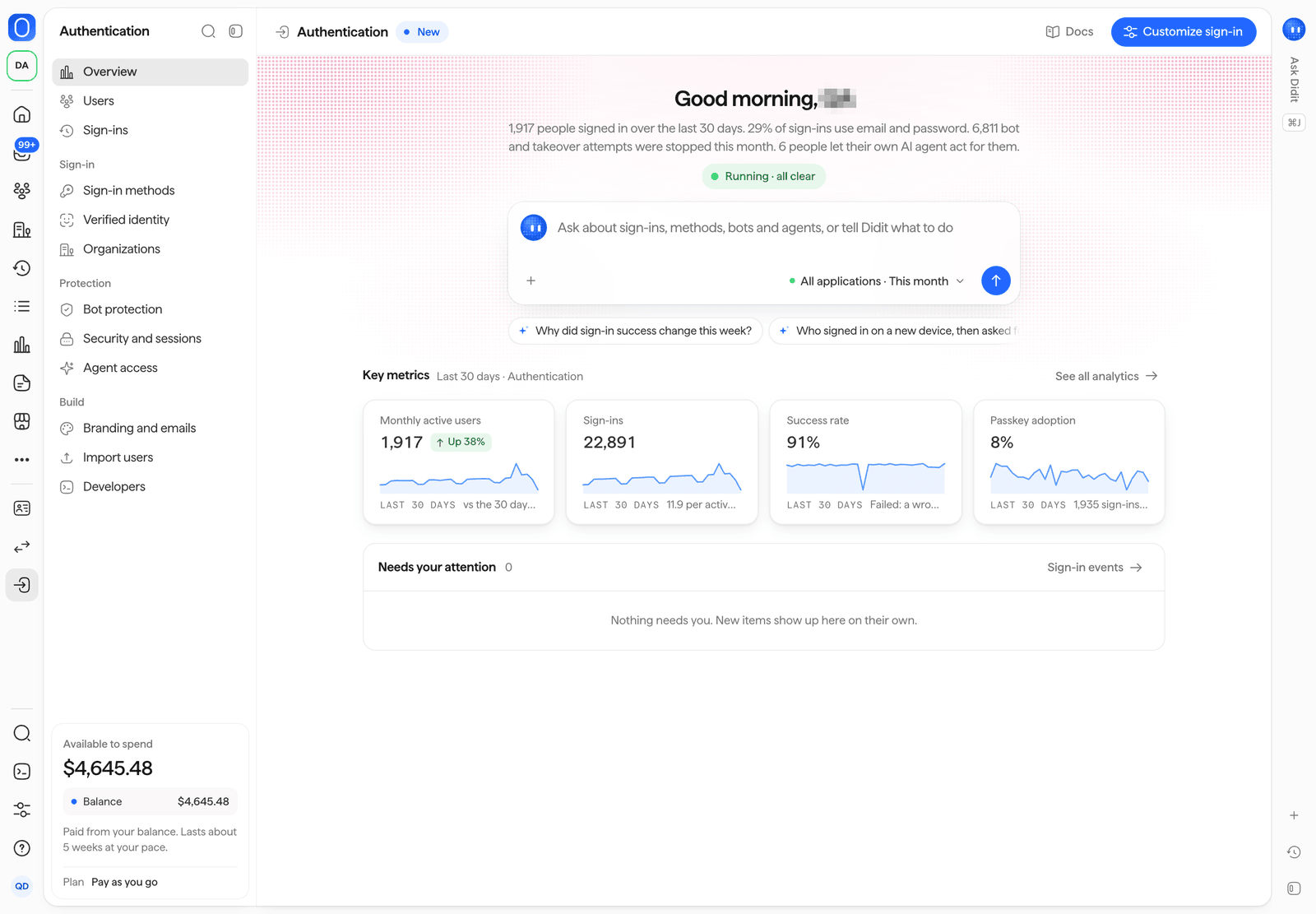
Authentication > Overview in the Business Console.
Users
Users is the same people list as the rest of the console, so each person’s sign-ins sit next to their verifications and transactions. The Can sign in and Locked or blocked views, and the Sign-in filter, narrow it to sign-in status, sign-in method or MFA. On a person, your team can:
Select several people to apply an action to up to 100 at once.
The rules behind each action are in admin identity actions.
Sign-ins and sessions
Sign-ins has two views. Sign-in attempts lists every attempt with its state (success, failed, challenged or blocked), the person, the method, the device, the location, a risk level and the time. Filter by state, method and risk. Open an attempt to see its evidence, such as the device, the network and any VPN or lockout signal, with Open person, See in Events and Block this IP, which adds the address to your blocklist in Lists.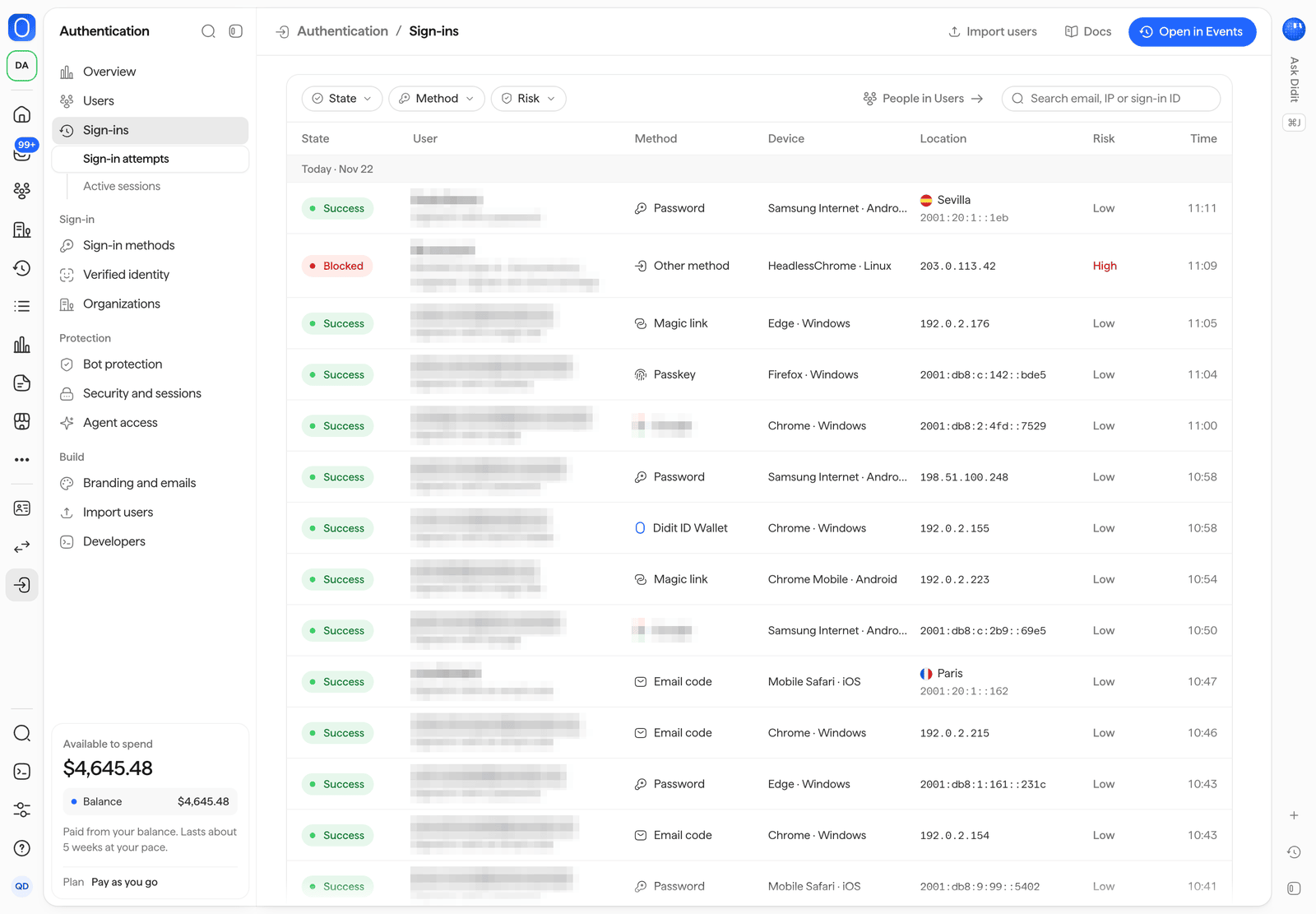
Authentication > Sign-ins: every attempt, with filters for state, method and risk.
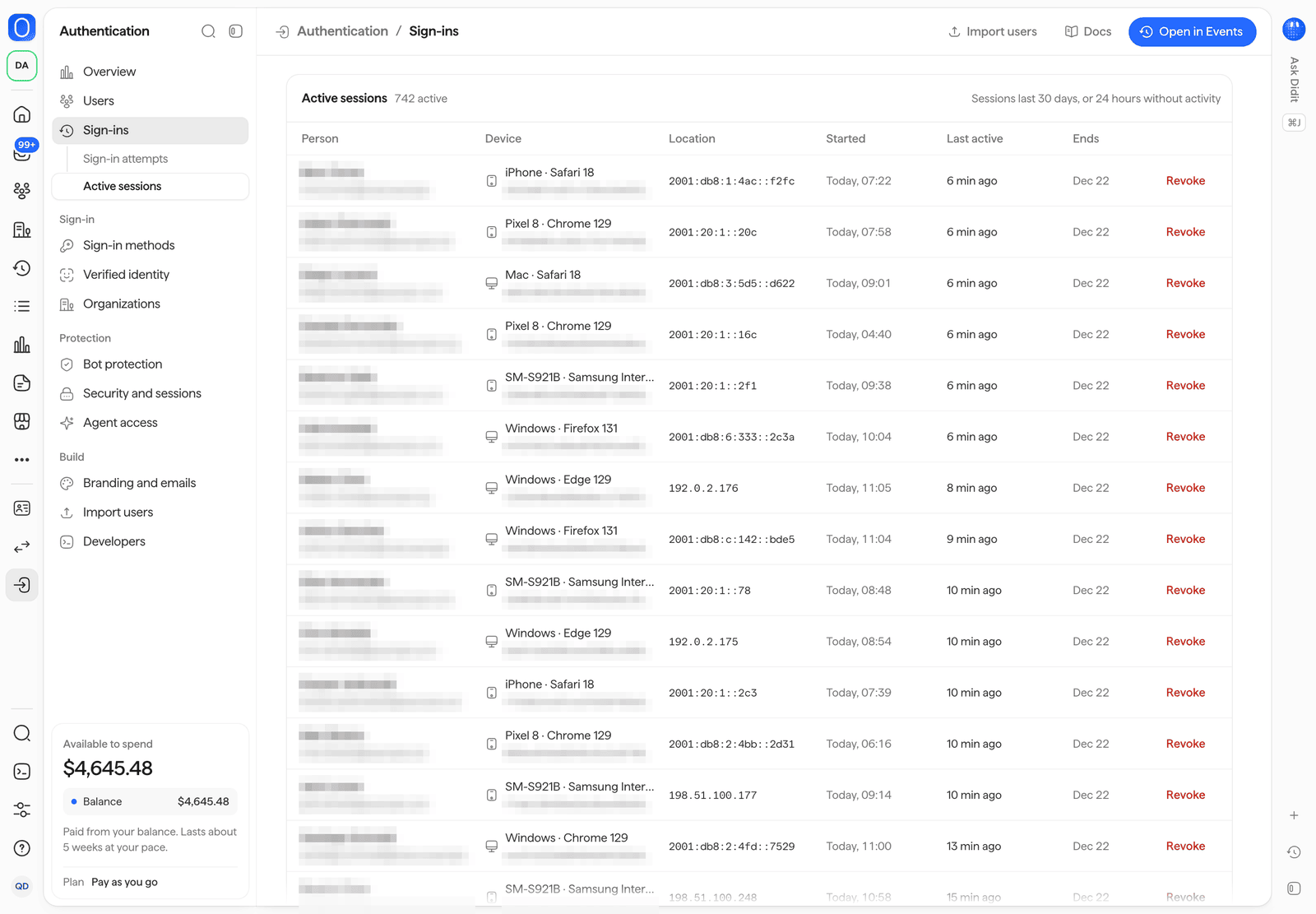
Authentication > Sign-ins > Active sessions, with Revoke on each session.
Sign-in methods
Turn each method on or off and configure it. Each one shows its share of your sign-ins.
The Hosted sign-in card shows your hosted sign-in URL, and Try your sign-in page opens it.
See sign-in methods for how each method works.
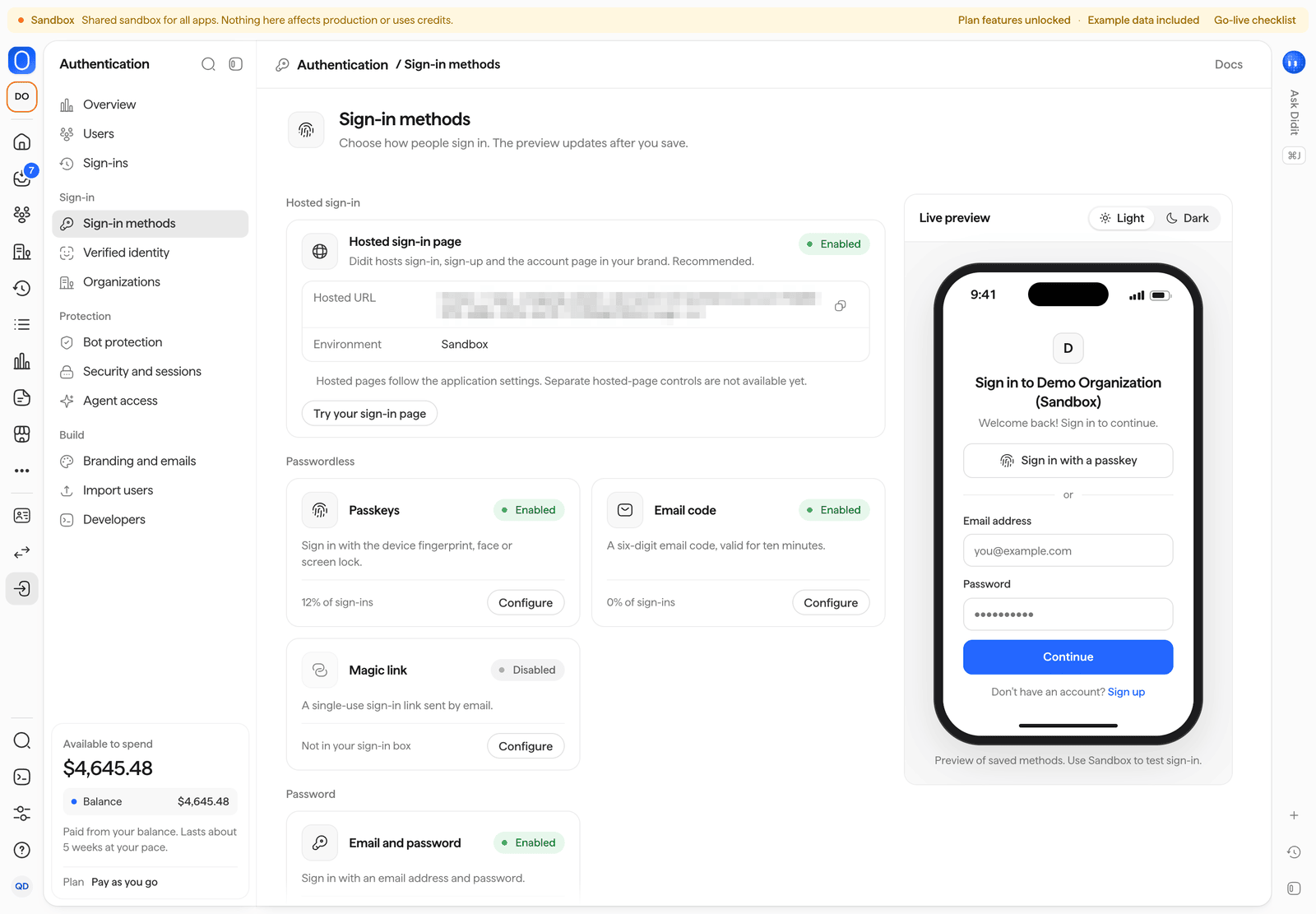
Authentication > Sign-in methods, with a live preview of the hosted page.
Verified identity
Choose the check a person must pass before their account is created (none, liveness or full ID), the rules that ask for a check again before sensitive actions (a payout above an amount, a new bank account, an email or phone change, a new device and then a payout), and the verified claims your app receives in the token. Preview a step-up shows what the person sees. Each rule shows how many checks it asked for this month and how many passed. See verified identity.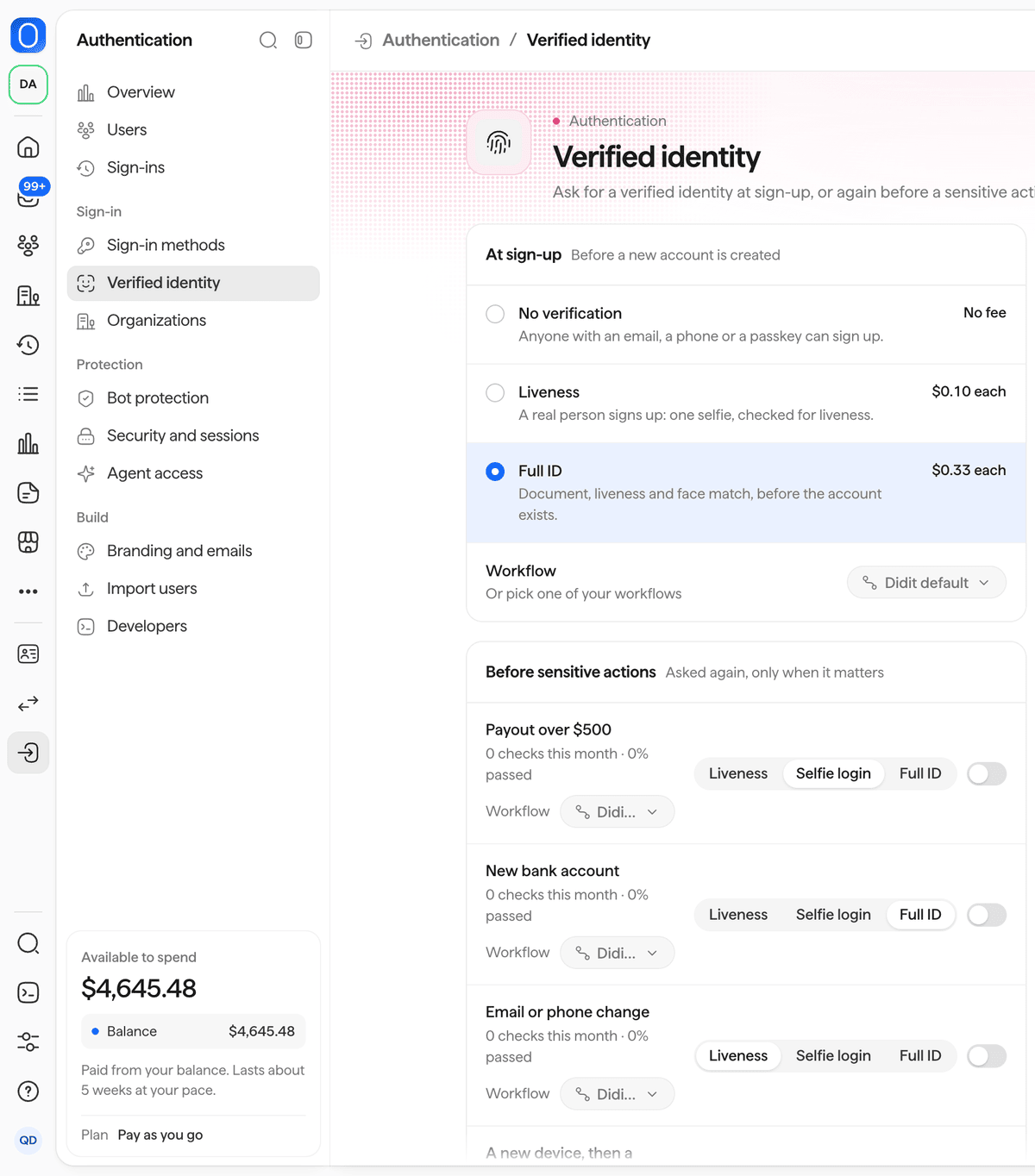
Authentication > Verified identity: the check at sign-up and the rules before sensitive actions.
Organizations
Turn organizations on for your business customers and manage them: New organization, then on each organization its single sign-on and setup link, verified domains with auto-join, members, roles and invitations. The key metrics count organizations, members, SSO connections and verified domains. See organizations.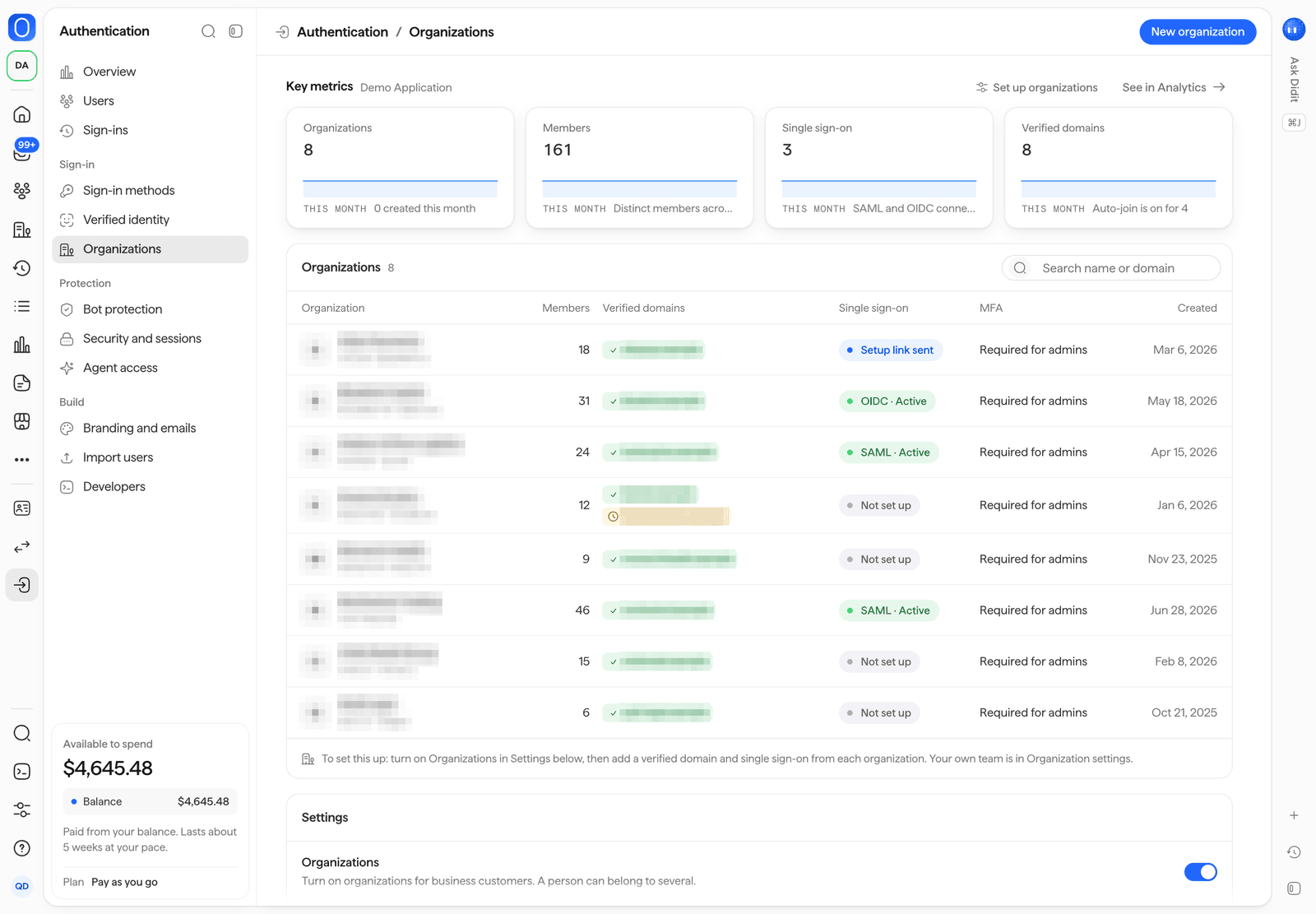
Authentication > Organizations.
Bot protection
Only allow humans is the switch for every protection. Under it, each of the six protections (bot detection, credential stuffing, brute force lockout, disposable emails, VPN and data center networks, and impossible travel) is set to Off, Log, Challenge or Block, and shows how many attempts it matched this month. Attack mode challenges every sign-up and sign-in for emergencies, and turns itself off. The key metrics show what was blocked and challenged this month and the largest burst, and See detections opens the matching events. See bot protection.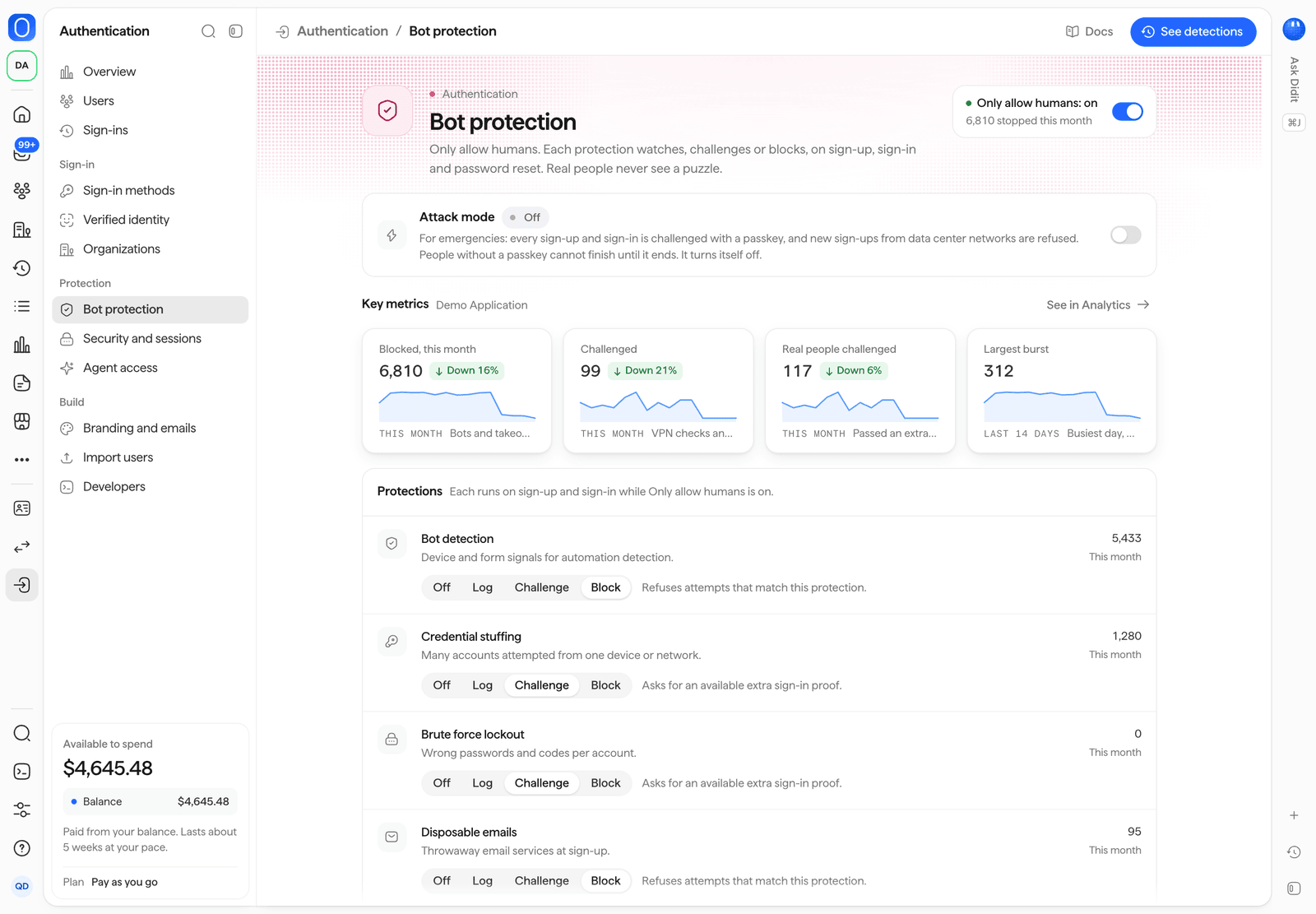
Authentication > Bot protection.
Security and sessions
Each setting maps to a field in application settings.
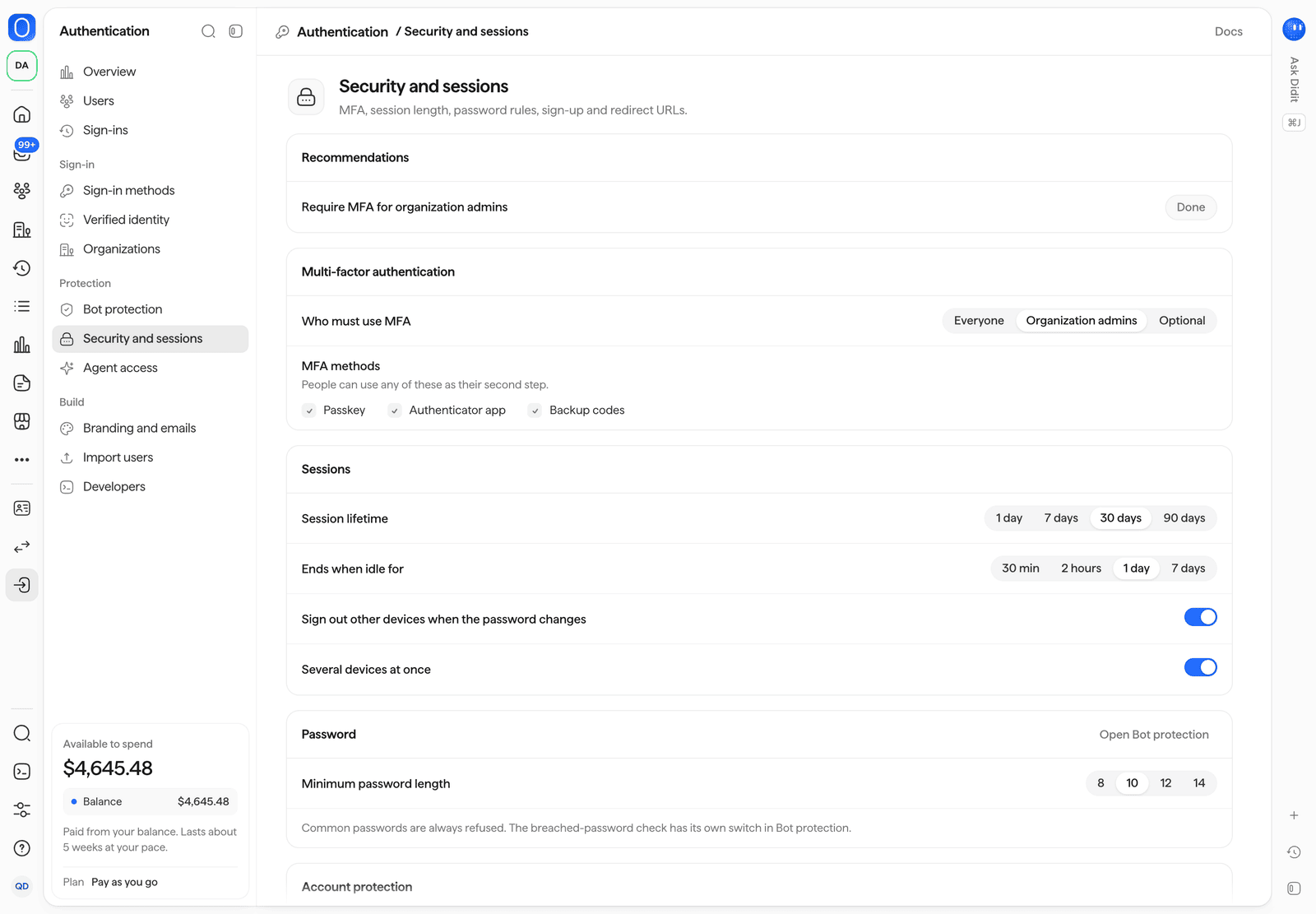
Authentication > Security and sessions.
Agent access
Turn agent access on, and choose what agents can do, how long their sessions last, and how people approve them. The page lists active agent sessions with Revoke, and counts approvals and revocations. See agent access.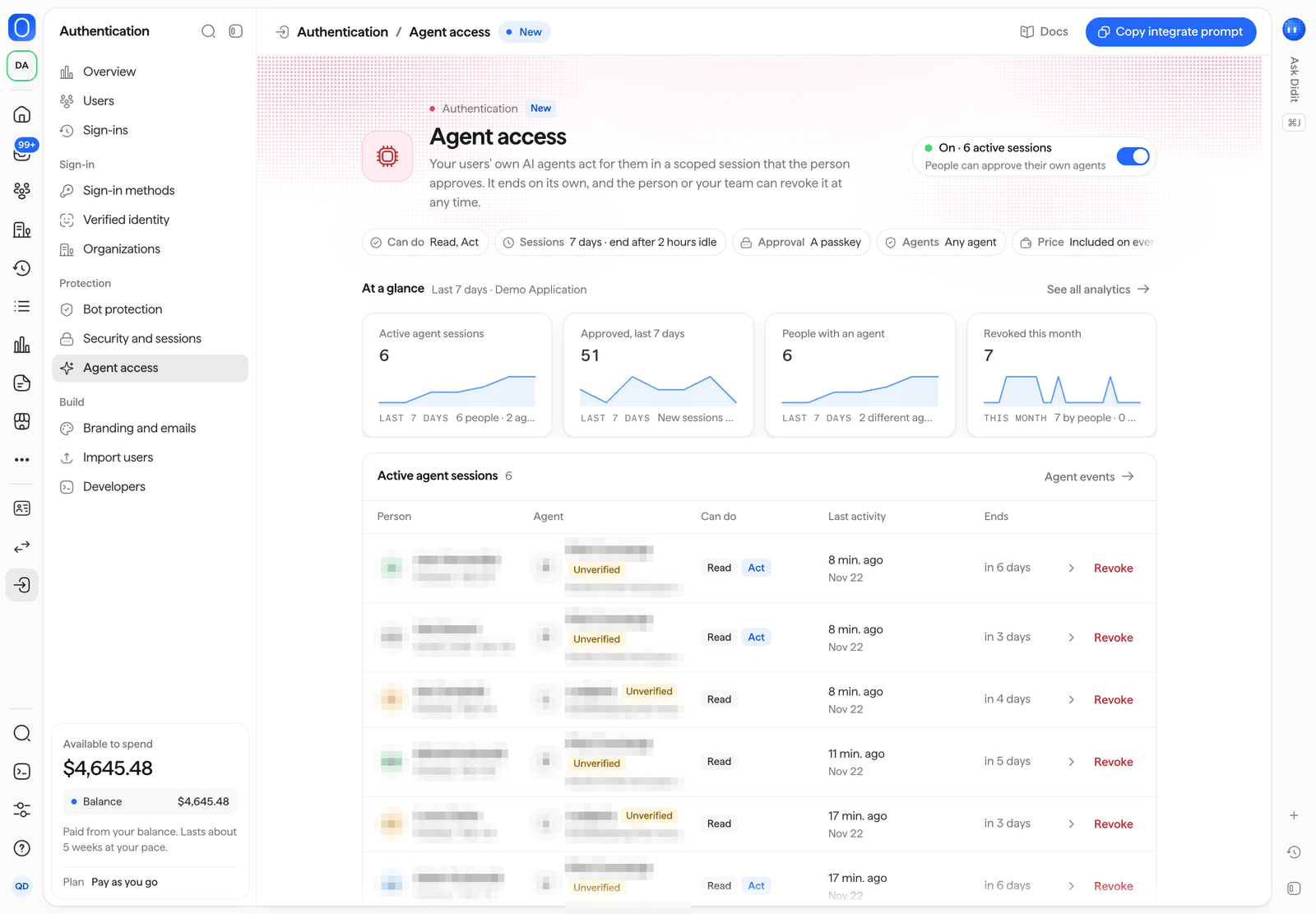
Authentication > Agent access.
Branding and emails
See your brand from Customization, set the page texts and your terms and privacy links, add a custom sign-in domain, and preview the hosted page in light and dark. The emails view lists your sign-in emails with a preview of each and Send a test, and the senders of your email and SMS messages. See branding and custom domain.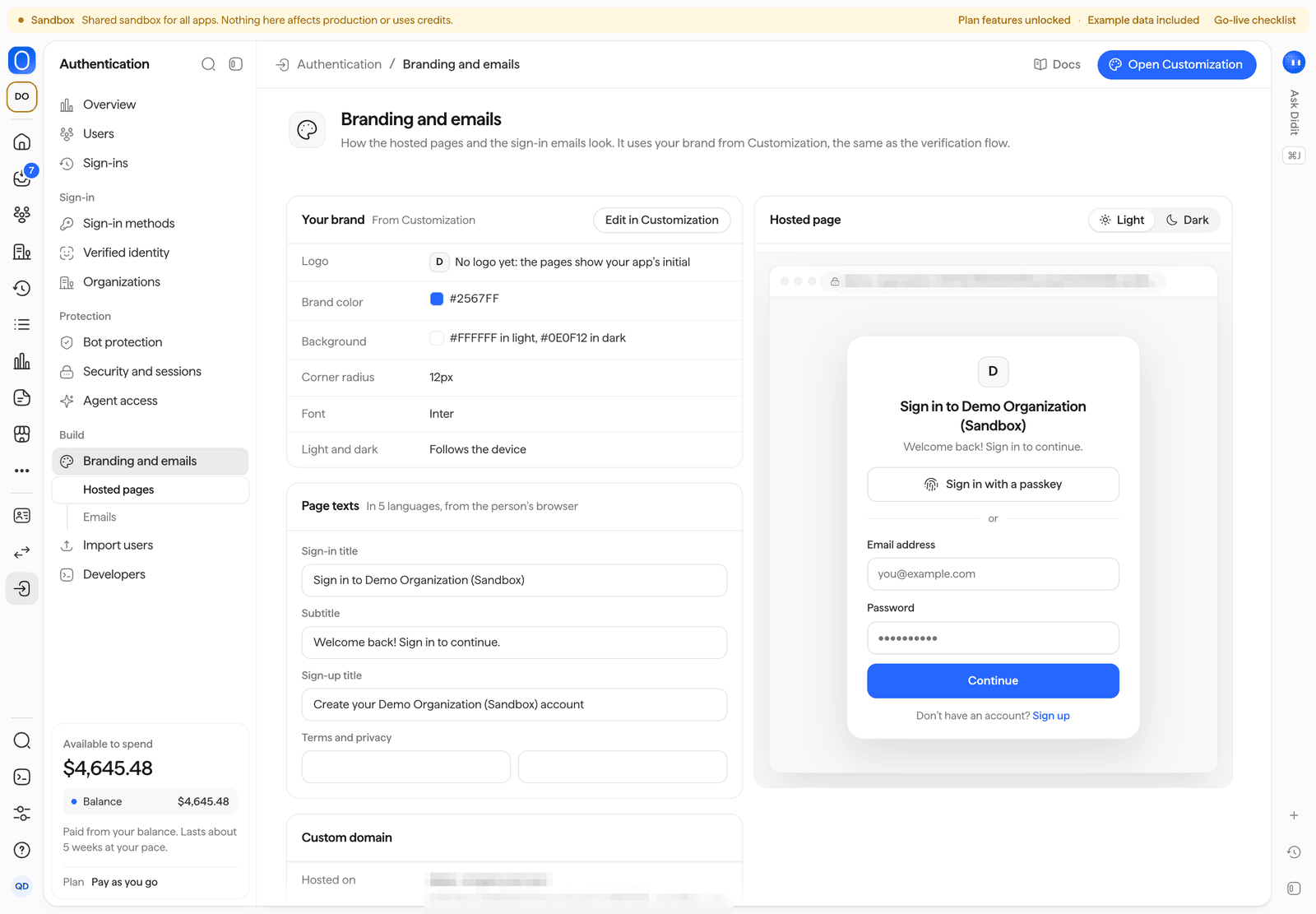
Authentication > Branding and emails, with a preview of the hosted page.
Import users
Bring people from another identity platform or your own database with a CSV or JSON file: run a dry run, check it, then import. Import history lists every job with its status and results. See import users.Developers
After you activate a custom domain, the publishable key changes: copy the new key from here into your app.
See the quickstart and events and webhooks.