

 Get Started
 Integrate / SDKs
 User Verification
 Business Verification
 Transaction Monitoring
 Authentication
 Changelog
An organization here is one of your customers, inside your application.
It is separate from your Didit organization, which holds your own team in the Business Console.
Turn organizations on
Organizations are off for a new application. Open Authentication > Organizations in the console, and in its Settings card:- Turn on Organizations.
- Choose the Default role for new members, the role people get when they join through a verified domain or single sign-on (
memberby default). - Keep Require MFA for organization admins on, the default MFA policy (see below).
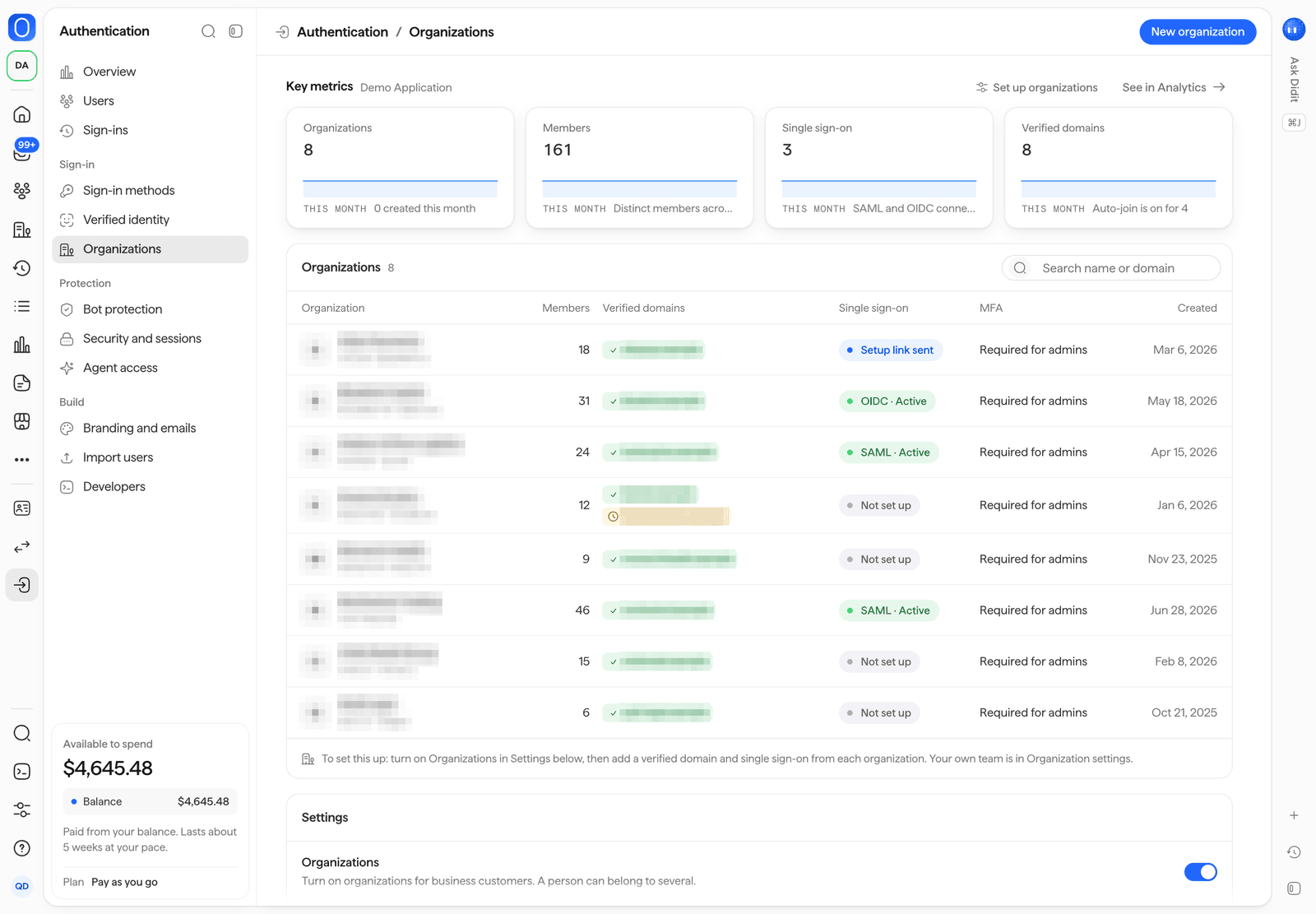
Authentication > Organizations.
Members and roles
A person can belong to several organizations of your application, with one role in each.
On the Scale and Enterprise plans, and in every Sandbox application, you can also define custom roles, each with a key and the permissions your app checks, for example
payouts.approve.
A member can hold a custom role on top of their role.
Open an organization to see its single sign-on, verified domains, members, roles and invitations.
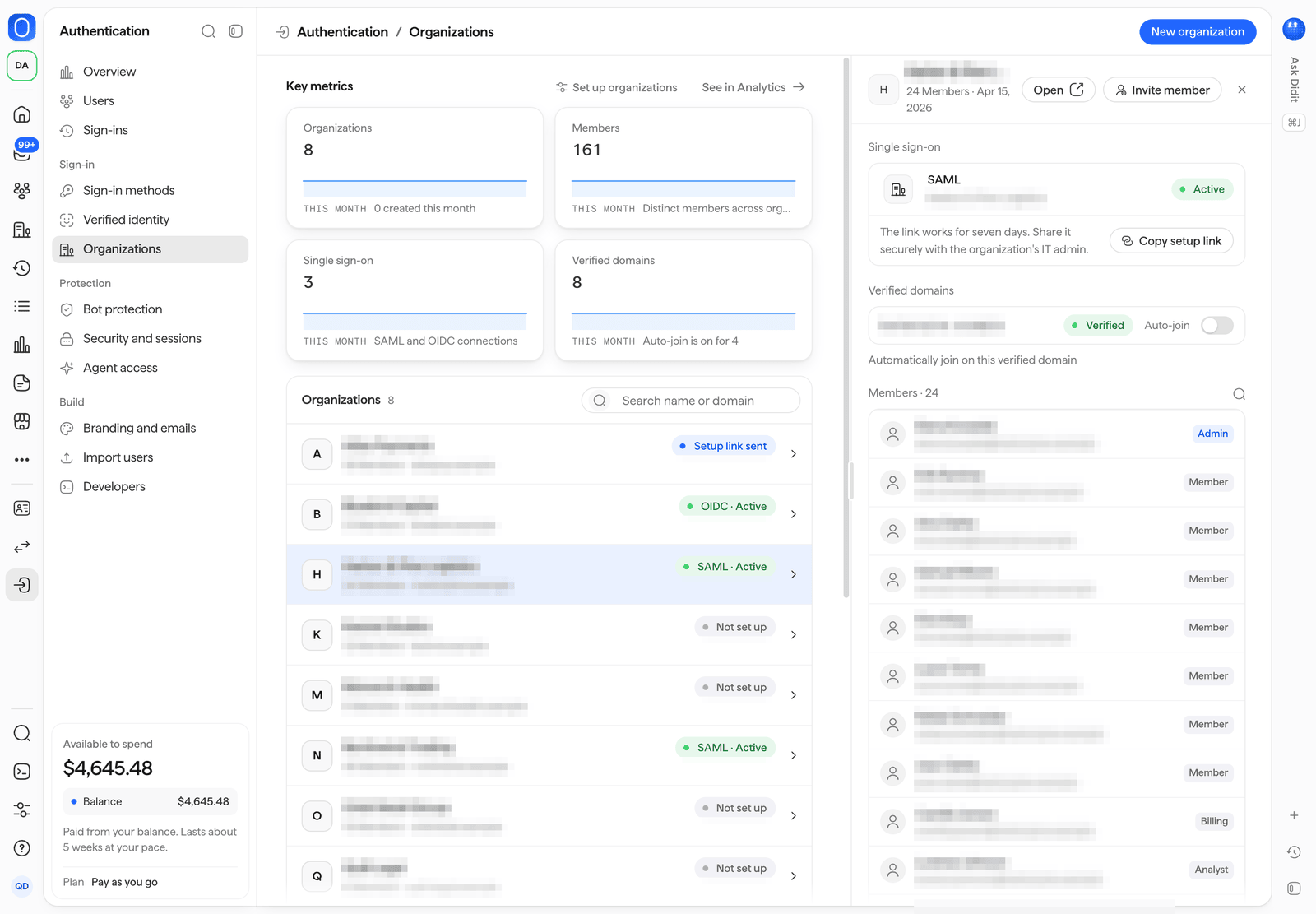
An organization's single sign-on, verified domains, members and roles.
Invitations
Choose Invite member on an organization, enter up to 20 email addresses and the role they get (admin, member or billing), and Didit emails each person an invitation.
An invitation lasts 7 days and opens the hosted /invite page on your sign-in origin, where the person signs in or creates an account and joins.
The organization’s Invitations list shows when each one expires, with Resend and Revoke.
Verified domains and auto-join
An organization can prove it owns an email domain:- Add the domain to the organization.
- Add the TXT record Didit shows at
_didit-auth.<domain>with your DNS provider, containing the verification token. - Check the domain. It shows as Verified once the record is found.
Company single sign-on
An organization can sign its people in through its own identity provider, with SAML or OIDC.- Setup link. Choose Copy setup link in the organization’s Single sign-on card and share it securely with the organization’s IT admin. It works for seven days and walks them through the connection. Setup links need the Scale or Enterprise plan; Sandbox applications have them on any plan.
- SAML. Your service provider metadata is published at
{origin}/sso/saml/metadata/. - Finding the connection. The hosted sign-in page finds the organization’s connection from the person’s verified email domain, from Use single sign-on, or from
organization=<slug>on the sign-in URL. - Status. The organization list shows whether each connection is active, not set up, or waiting on a setup link that was sent.
MFA for organization admins
The default MFA policy,organization_admins, requires a second factor from every person who holds the admin role in any organization of your application.
A person who becomes an admin must enroll a factor, and GET /session/ stops accepting their session until the session meets the policy again.
Change the policy under Authentication > Security and sessions, or with mfa_policy in application settings.
Read organizations in your app
While organizations are on, the person’s tokens and session tell your app where they belong:GET /session/, before every action that depends on them.
When organizations are off, org is null and the list is empty.