

 Get Started
 Integrate / SDKs
 User Verification
 Business Verification
 Transaction Monitoring
 Changelog
Customization
In the Style Editor you can customize everything in the verification UI: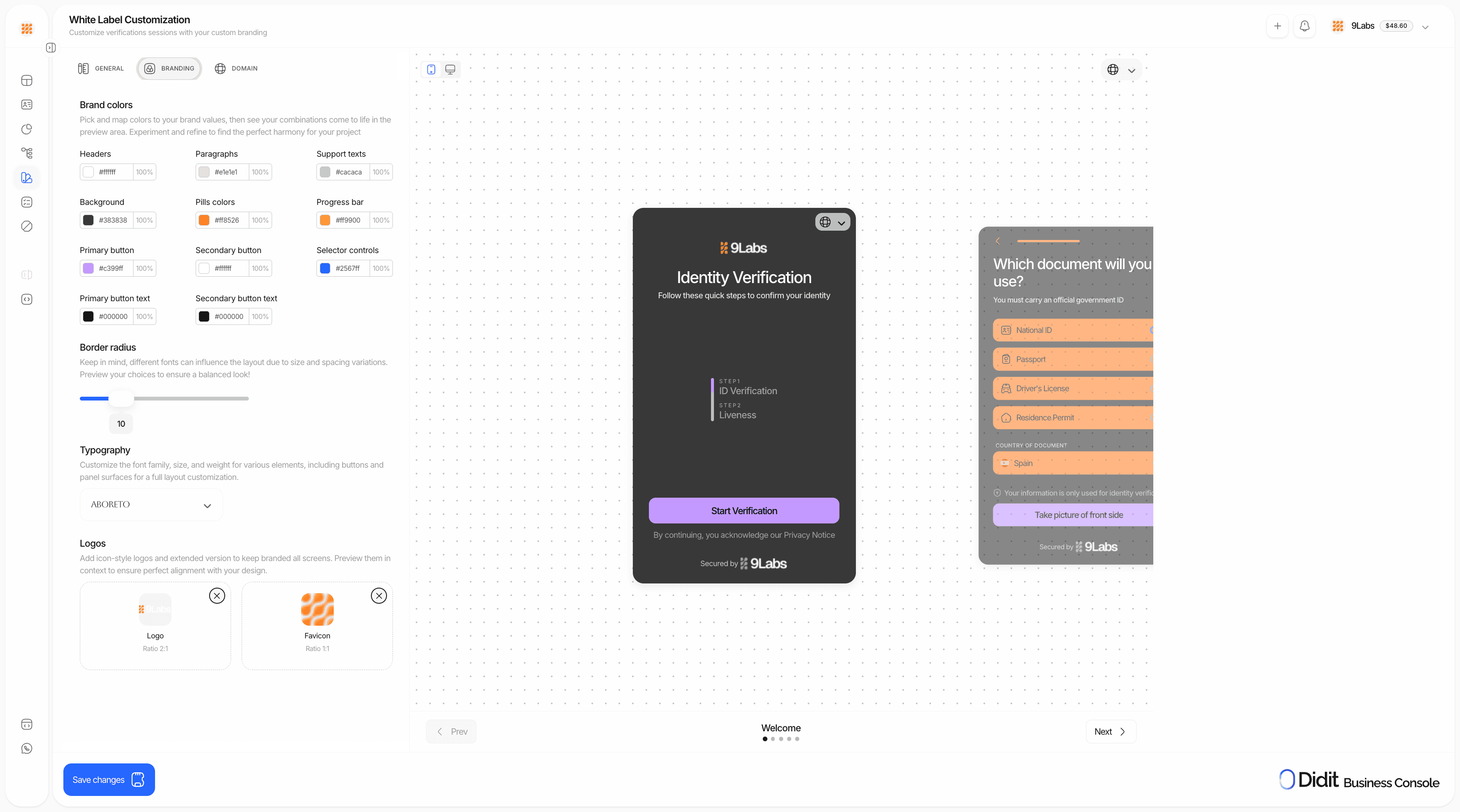
Activate custom style in your workflow
After configuring your custom style, you must enable it per workflow for it to apply:- Go to Workflows in the sidebar
- Open the workflow you want to brand
- Click Settings (or the gear icon)
- Under Options, find Include custom style
- Enable the toggle
Custom styles only apply to workflows where Include custom style is enabled. If you don’t enable it, the workflow will use the default Didit branding.
Custom text
Beyond colors, logos, and layout, the Texts tab lets you override the wording of specific verification-flow screens and change how the completion screen behaves, without forking translations for every locale. Open Console → White Label → Texts to configure:- Text overrides — replace the wording of a fixed set of strings across the welcome screen, document selection, document capture, selfie intro, questionnaire navigation buttons, the completion screen, and common buttons like Continue and Retry. An override applies for one locale at a time, and you can set a different value per locale.
- Completion screen mode — choose Decision (default) to show the real outcome on the final screen, or Submitted for review to always show a neutral “we received your data and are reviewing it” message, even when Didit already approved the session. Use this if your own product communicates the final decision to users later.
- Resubmission email — reword the email sent when you request a resubmission with Send email to user checked: subject, heading, message, button and footer note. When every requested step is due to an expired document (for example a session that moved to KYC Expired and is sent back for re-verification), the email uses the Expired document heading and message instead of the generic ones, so the user is told the document expired and to verify again with a valid one. Any other reason keeps the generic wording plus a per-step list of localized reasons.
Dynamic placeholders
Override text can include these placeholders, resolved per user at render time:{stepIndex} and {stepTotal} are computed from the actual workflow the user is running, so the same stored string correctly renders “step 1 of 3” for a three-step workflow and “step 1 of 2” for a two-step workflow. The resubmission email has no workflow position, so its strings accept {appName} only.
Each overridden string has a 500-character limit. The Texts tab supports every locale your application can translate into, which is a longer list than the language selector in the Style Editor. Use Auto-translate to draft overrides for other locales from a value you’ve written by hand, then review before saving.
Setup
1
Open the Style Editor
Navigate to Console → White Label → Style Editor.
2
Configure visual elements
- Select your brand colors using the color picker
- Upload logos in both square and rectangular formats
- Adjust typography and border radius settings
3
Set up custom domain (optional)
Serve the flow from your own subdomain instead of
verify.didit.me. Follow Custom domain for the DNS records and verification steps.4
Override text (optional)
Open the Texts tab to change the wording of specific screens per locale, or switch the completion screen to Submitted for review. See Custom text.
5
Enable in your workflow
For each workflow that should use your branding: Workflow → Settings → Options → Include custom style → enable.
6
Preview and test
Use the live preview to see changes in real-time. Test the full verification flow before going live.
Compliance responsibilities in white-label flows
White-labeling changes the branding of the verification flow. It does not remove your obligations as the controller of that user journey. Before you launch a white-label flow, make sure you:- Tell the end user that your company is requesting the verification and that Didit powers the verification workflow.
- Link to your own privacy notice and any controller-side legal terms that apply to the journey.
- Link to Didit’s Verification Privacy Notice and End User Terms for Identity Verification.
- Collect explicit affirmative consent before document capture, selfie capture, liveness, or biometric processing whenever the applicable law or your legal position requires it.
- Keep any proof of notice or consent that your legal team requires in your own systems.