

 Get Started
 Integrate / SDKs
 User Verification
 Business Verification
 Transaction Monitoring
 Changelog
"Approved" to "Kyc Expired". You do not enable it, and no warning is sent before the date passes.
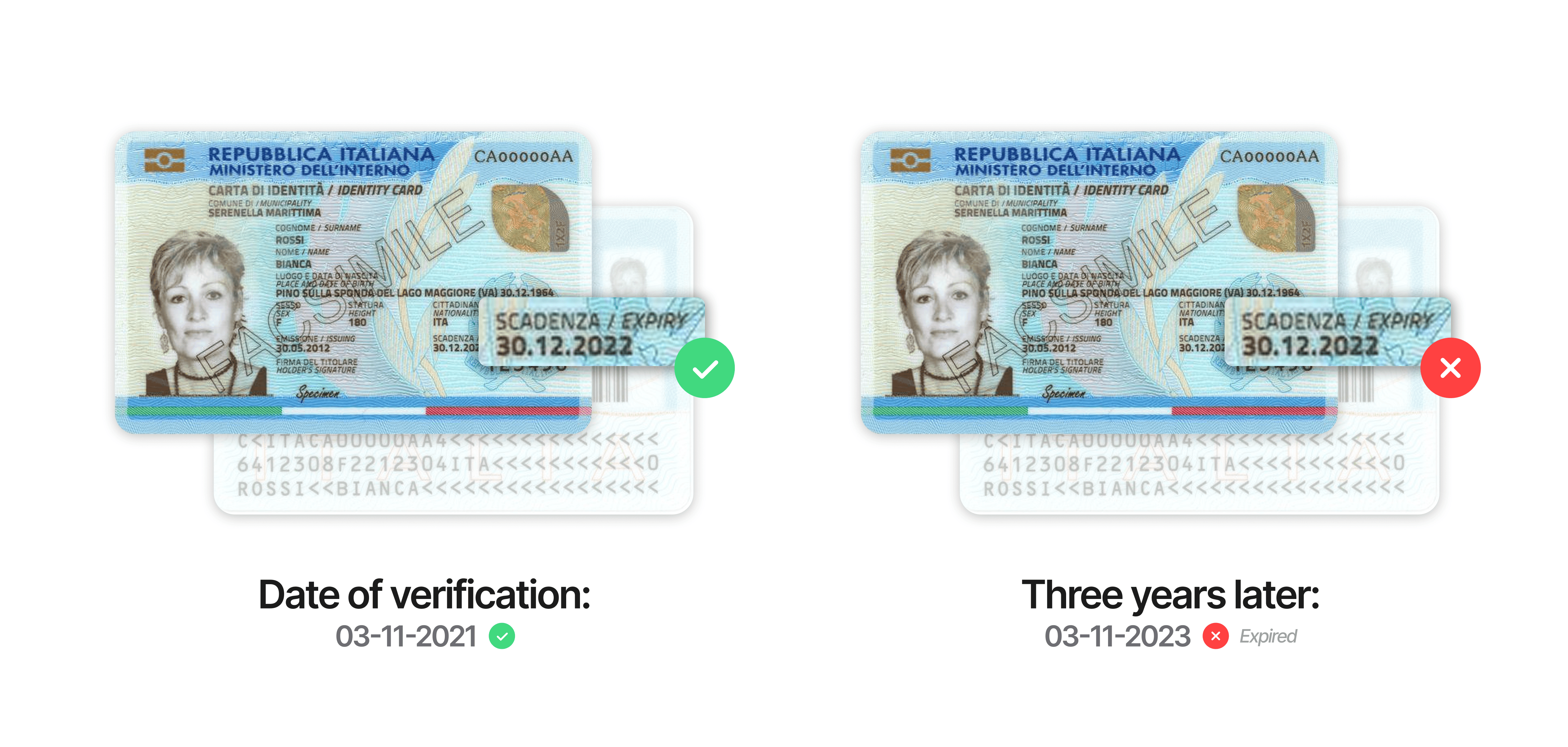
- Initial verification: the document is verified during the session as usual, and the expiry date printed on it is read and stored with the ID verification result.
- Ongoing check: Didit keeps comparing approved sessions against that date.
- Status update: once the date has passed, an
"Approved"session moves to"Kyc Expired", astatus.updatedwebhook fires with the new status, and the ID verification result carries aDOCUMENT_EXPIREDwarning. - No advance warning: the status change is the signal. No warning is sent before the date passes, so there is nothing to watch for ahead of time.
Key features
- Automatic, with nothing to enable. Every application is monitored; there is no monitoring setting to switch on.
- Triggered by the document’s own expiry date. It is not a window measured from the approval date: a document that expires years after approval is handled the same way as one that expires next week. A document whose expiry date is not read has no date to monitor.
- One control per country and document type. The Expiration mode decides whether a document is monitored at all (see below).
- You are told through the status and the webhook. The session’s status is the source of truth, and
status.updateddelivers the transition.
Need more details? Check our API Reference for a complete list of properties and values.
The only control: Expiration mode
The Expiration mode of a country and document type is the single setting that affects monitoring. Find it in the Business Console under ID verification → Additional settings by country & document type, described on ID verification.Use cases
Regulatory compliance
- Keep an approved user’s identity document from silently ageing out of validity
- Re-verify a user when their document expires, instead of on a fixed schedule
- Show a reviewer when each document was verified and the expiry date it was verified against
Risk management
- Catch a user whose identity document has expired before your next review cycle
- See which approved sessions moved to
"Kyc Expired"and how long ago
Operational efficiency
- Automate a check that would otherwise be a manual document review
- Trigger re-verification from the webhook instead of polling